ModMii
WARNING
This program does not come with a warranty. You are responsible for any potential damage done to your console.
WARNING
Some features may be limited for the Wii mini on ModMii.
ModMii is an all-in-one Wii and Wii U hacking tool for Windows created by XFlak. It has many use-cases, including:
- Modding your console for the first time, or re-modding it
- Checking for and updating outdated softmods
- Fixing upside-down Homebrew Channel problems
- Running homebrew without making any changes to your Wii's NAND
- Downloading homebrew
ModMii Overview
There are two different ways to use ModMii: ModMii Classic, a fully-featured command line interface, and ModMii Skin, a GUI with fewer features. If you're looking to simply mod your console for the first time, ModMii Skin should suffice. Otherwise, ModMii Classic is recommended.
| Tools | ModMii Classic | ModMii Skin |
|---|---|---|
| ModMii Wizard | ✅ | ✅ |
| SysCheck Updater Wizard | ✅ | ⛔ |
| USB Loader Setup Wizard | ✅ | ✅ |
| HackMii Solutions Wizard | ✅ | ✅ |
| Abstinence Wizard | ✅ | ✅ |
| Region Change Wizard | ✅ | ✅ |
| SNEEK/EmuNAND Installation | ✅ | ✅ |
| Open File Function | ✅ | ⛔ |
| Load Download Queue | ✅ | ✅ |
| Download Page 1/2/3/4/5 | ✅ | ⛔ |
| Advanced Downloads | ✅ | ⛔ |
| Load Download Queue | ✅ | ⛔ |
| Build Config Files | ✅ | ⛔ |
| File Cleanup & App Updater | ✅ | ⛔ |
Click here for a detailed explanation of each tool.
| Tool | Description |
|---|---|
| W = ModMii Wizard | Hack your Wii for the first time or re-hack a Wii that has been previously modded. |
| SU = SysCheck Updater Wizard | Checks for and updates old modifications installed to your console. On the Wii it can fix things such as DarkCorp/CIOSSPAGHETTI that can cause issues for modern homebrew. |
| U = USB-Loader Setup Wizard | Set up a USB loader to load disc backups from an SD or USB hard drive. This option is not necessary if using the ModMii Wizard. |
| H = HackMii Solutions Wizard | Fix issues with the HackMii Installer or an upside-down Homebrew Channel. |
| AW = Abstinence Wizard | Run homebrew on your Wii without making any permanent modifications to the system NAND. |
| RC = Region Change Wizard | Change the region of your Wii. |
| S = SNEEK Installation, EmuNAND Builder/Modifier, Game Bulk Extractor | Set up an EmuNAND (aka neek2o) on your SD or USB. Used for extra storage space for saves/channels and running homebrew without permanent modifications to the system NAND. |
| F = Open a File or Folder | Various tools for developers and advanced users. |
| # = Download Pages | Various download pages for homebrew apps, PC apps, IOSes, cIOSes, Wii Menu themes and more. |
| A = Advanced Downloads and Forwarder Builder | Download any IOS and cIOS and build custom DOL/ISO forwarders. Intended for advanced users. |
| L = Load Download Queue | Load bundled or previously saved download queues. |
| C = Customize Config Files for Bootmii, Wad Manager or Multi-Mod Manager | Build customized config files for BootMii, Wad Manager, and Multi-Mod Manager. |
| FC = File Cleanup | Update apps and remove unnecessary files from your SD card or hard drive after softmodding your Wii. |
Installing ModMii
Requirements
- A Wii or Wii U
- A USB drive or SD card
- The drive should be formatted to FAT32/MS-DOS
- See the Storage Device FAQ for more info
- A Windows PC (a Virtual Machine will work)
- ModMii
Installation
WARNING
Your browser or antivirus software may flag ModMii as malware - this is a false positive. ModMii does not contain any malware.
Go to the ModMii website and scroll down to the Download section. Here, select the
Installeroption. Your browser may flag the installer as malware, but it is a false positive.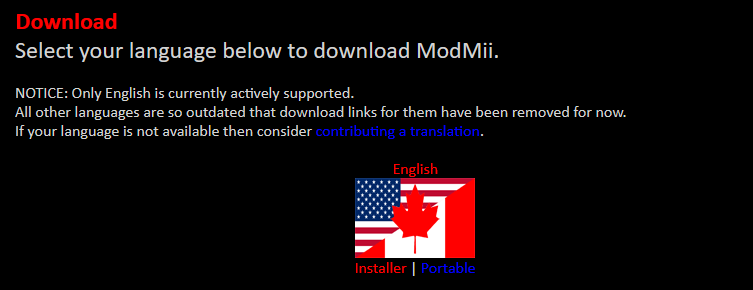
Open the
ModMiiInstaller.exefile and go through the setup process.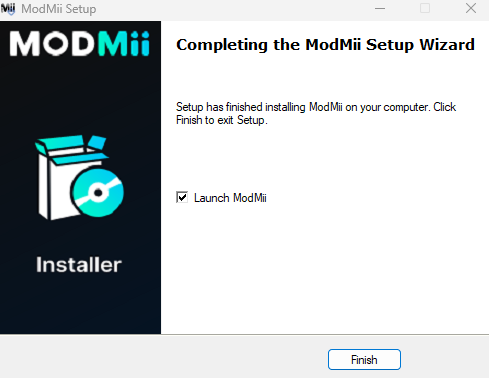
Using the ModMii Wizard
The ModMii Wizard is a tool that helps you softmod your console from start to finish. It will download all necessary files and generate a guide for you to follow. It can also be used to overwrite and update existing softmods.
Open ModMii Skin or ModMii Classic and select the ModMii Wizard option at the top of the list.
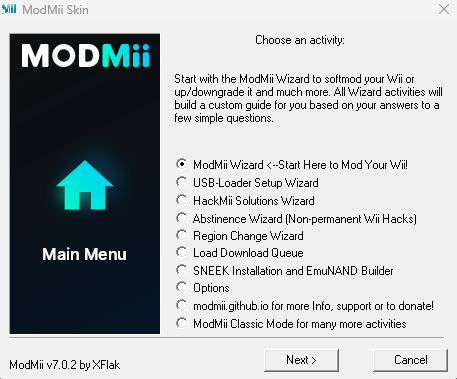
Choose the platform you are going to mod. If you have a Wii U, it is recommended to mod both the Wii U and vWii. If you are planning on modding both the Wii U and vWii, skip to step 9. If you are planning on modding just the vWii, skip to step 5. If you are planning on modding Just the Wii U, skip to step 13.
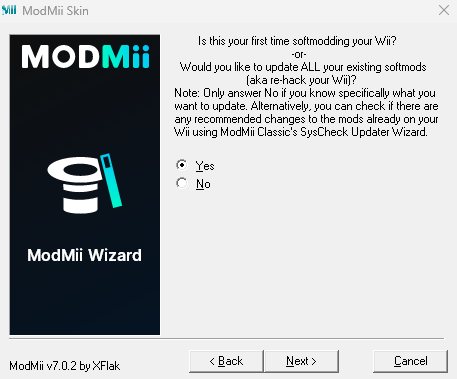
Answer
Yesto the first question.
Select your current System Menu version and region, following the instructions in the program. (If you don't know how to get this information, select the bottom option and press
Nextfor a video guide)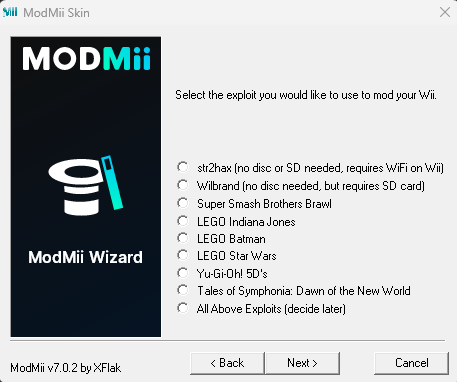
Select the exploit you would like to use to mod your console. If you are on a Wii, Wilbrand is recommended if you have an SD card. For modding the vWii, using the browser is recommended.
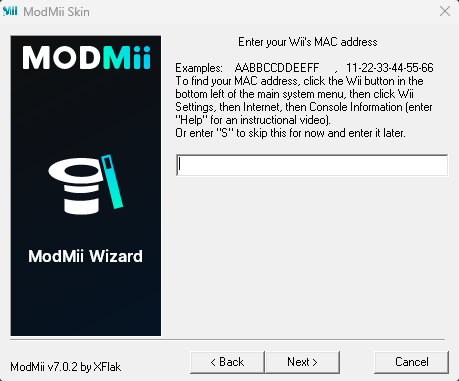
If you selected the Wilbrand option in the previous step, enter your Wii's MAC address. (If you don't know how to check your Wii's MAC address, enter
Helpin the text box for a video guide)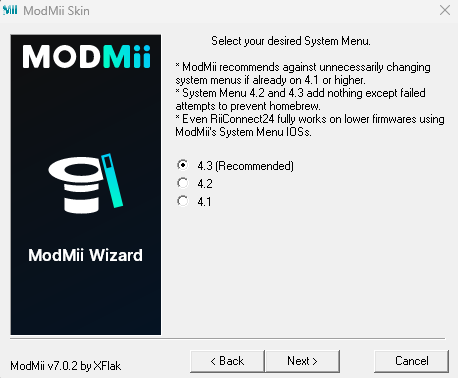
Select your desired System Menu version from the list. You will typically want to select 4.3.

Select whether or not you would like to install any of the listed channels. This is optional.
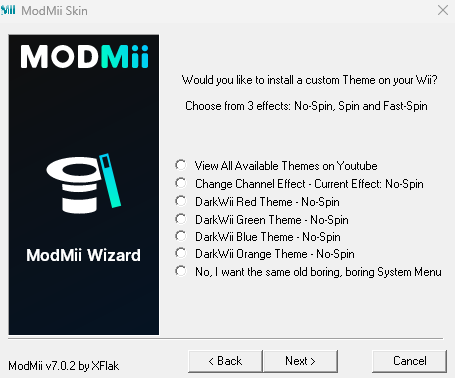
Select whether or not you would like to install a custom Wii Menu theme, with the choice of three theme effects. Each effect deals with how much the outline when hovering over a Wii Channel spins.
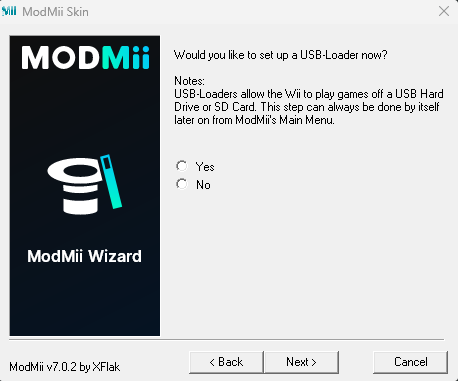
Select whether or not you would like to set up a USB loader.

If you selected
Yesin the USB Loader menu, select which USB loader you would like to use. USB Loader GX and/or WiiFlow are recommended.
If you selected
Yesin the USB Loader menu, select where you would like to save your USB loader files.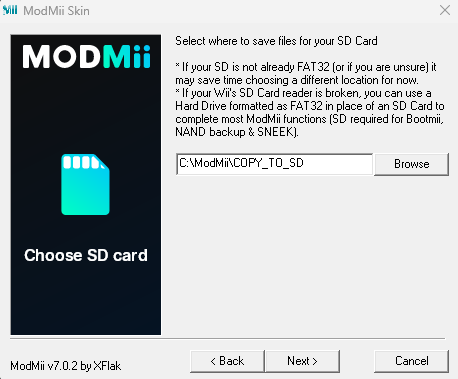
Verify where you would like to save files for your SD card and/or USB drive.
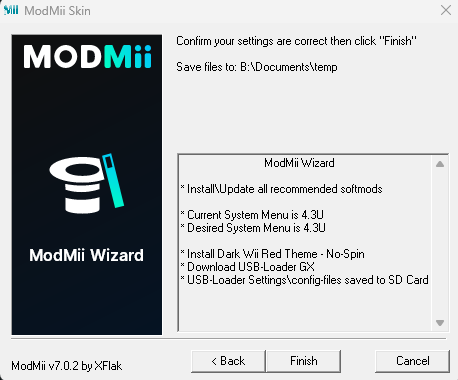
Confirm your settings are correct, and then press
Finish. Once you press the button, ModMii will begin to process and download files in the background, and will automatically generate and open a guide for you.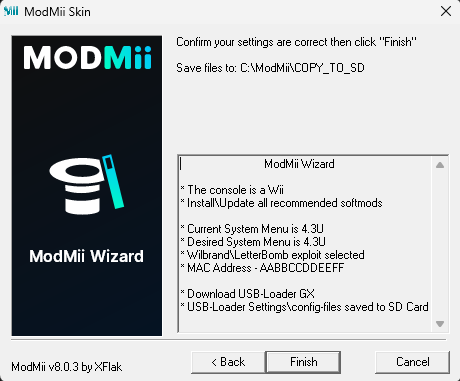
WARNING
From here, you should follow the guide generated by ModMii. You do not need to follow the below sections of this guide -- they are provided as supplemental information for people using ModMii for other purposes.
SysCheck Updater Wizard
The SysCheck Updater Wizard is a tool that utilizes the homebrew app SysCheck to analyze any modifications on your Wii, especially IOS and cIOS. It accepts a syscheck.csv file generated by SysCheck and provides any necessary updates.
If you have not already, follow the SysCheck guide to generate a
syscheck.csvfile on your SD card or USB drive.Open ModMii Classic and enter in
SUto open the SysCheck Updater Wizard.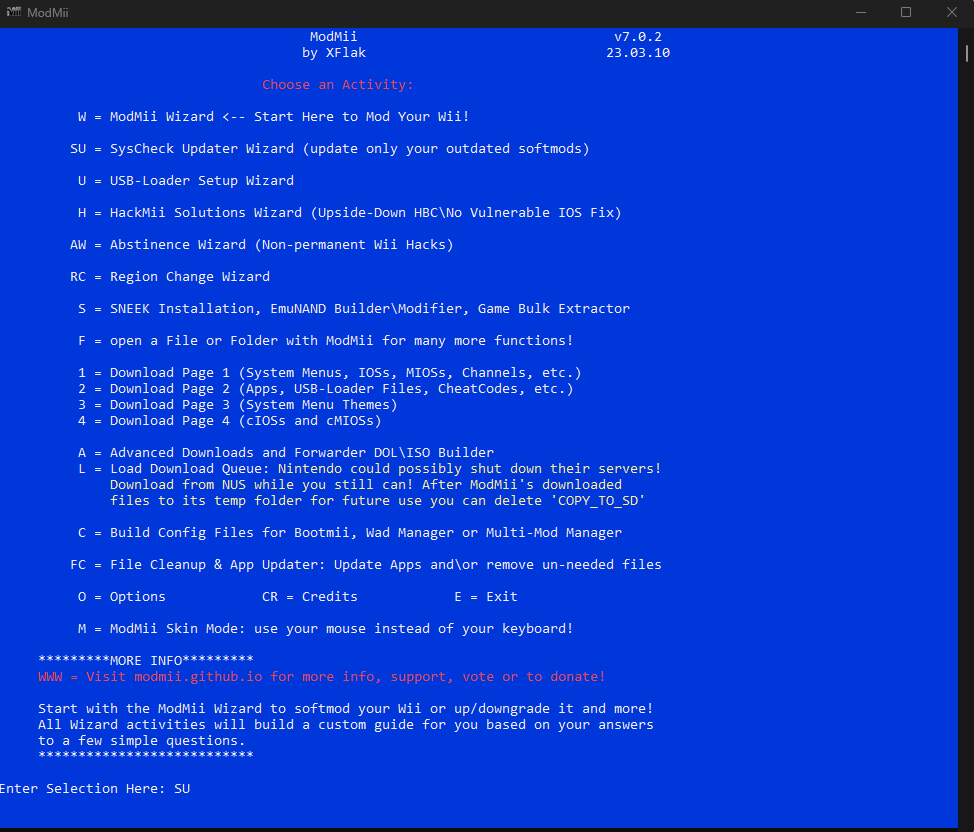
Drag and drop the
syscheck.csvfile from Windows Explorer into the window. This will paste the location of the file, from which you can press Enter.
If Priiloader is detected, it will ask you if you want to update it. Type
Yand press Enter.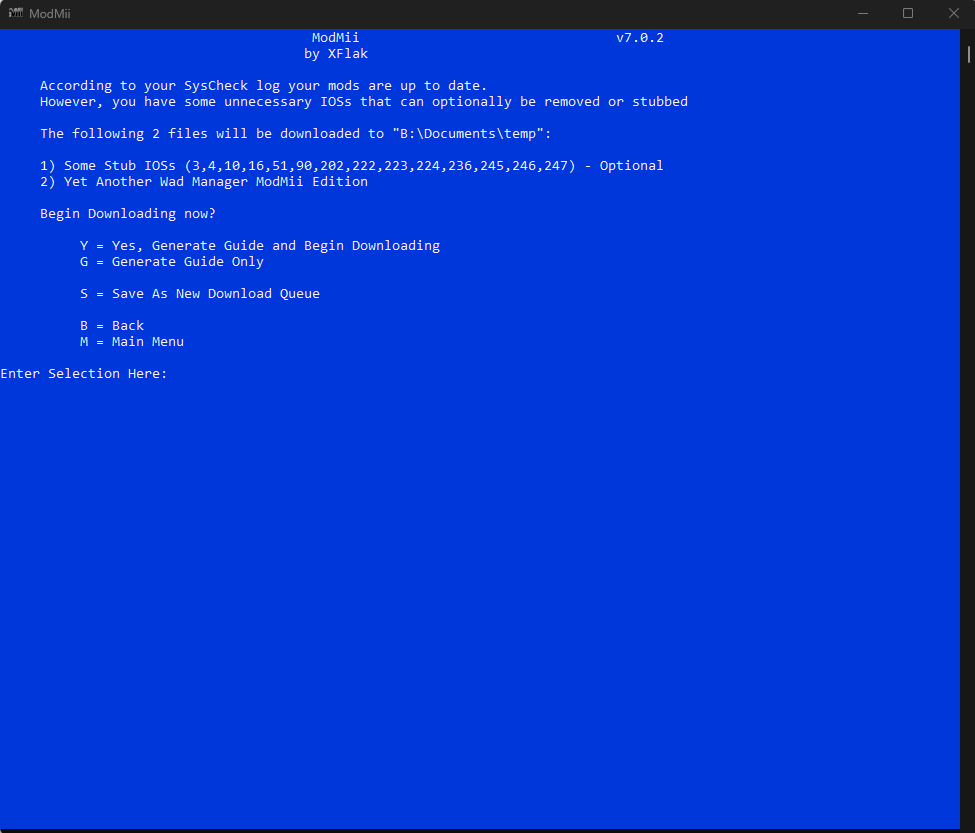
The program will analyze your SysCheck file and will provide options for you depending on what it sees. In this example, the mods on the Wii were up-to-date, but there were several unnecessary IOSes that could be stubbed. Type
Yand press Enter.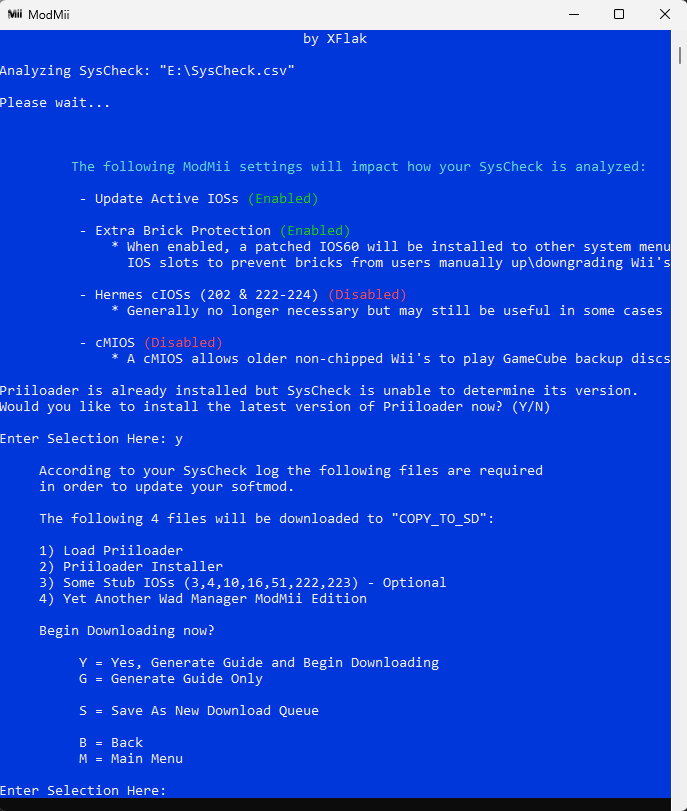
WARNING
From here, you should follow the guide generated by ModMii. You do not need to follow other sections of this guide -- they are provided as supplemental information for people using ModMii for other purposes.
HackMii Solutions Wizard
The HackMii Solutions Wizard fixes issues caused by things like Darkcorp/CIOSSPAGHETTI by installing clean IOSes. It can fix issues such as:
- HackMii Installer not prompting "Press (1) to continue"
- HackMii Installer saying "no vulnerable IOS found!"
- Homebrew Channel displaying upside-down
Open ModMii Skin or ModMii Classic and select the HackMii Solutions Wizard.
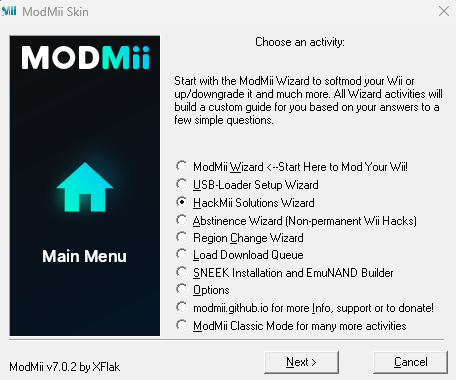
Select your current System Menu version and region, following the instructions in the program. (If you don't know how to get this information, select the bottom option and press
Nextfor a video guide)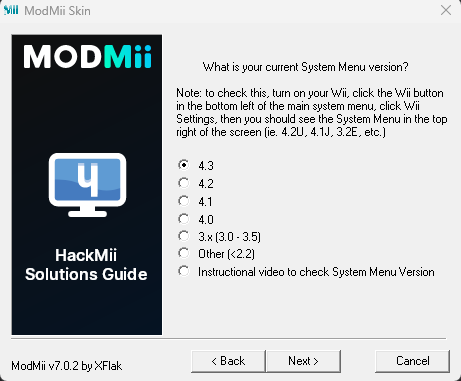
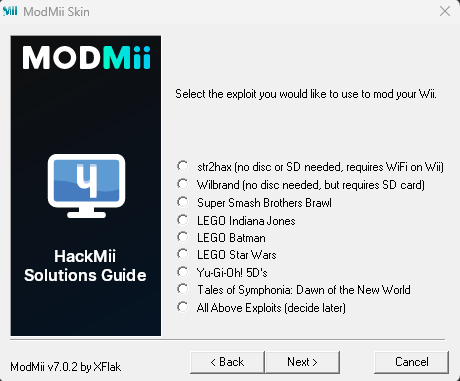
Select the exploit you would like to use to mod your console. If you are on a Wii, Wilbrand is recommended if you have an SD card. For modding the vWii, using the browser is recommended.
If you selected the Wilbrand option in the previous step, enter your Wii's MAC address. (If you don't know how to check your Wii's MAC address, enter
Helpin the text box for a video guide)
Verify where you would like to save files for your SD card and/or USB drive.
Confirm your settings are correct, and then press
Finish. Once you press the button, ModMii will begin to process and download files in the background, and will automatically generate and open a guide for you. After following the generated guide, it is recommended that you use the SysCheck Updater Wizard to undo any other problematic modifications on your Wii.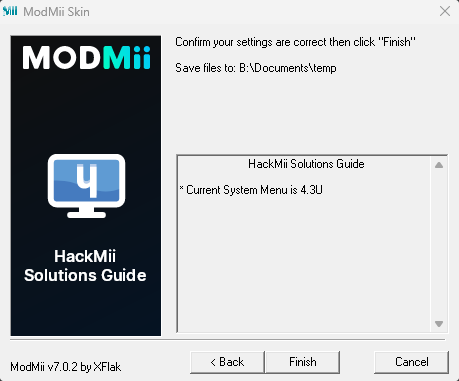
WARNING
From here, you should follow the guide generated by ModMii. You do not need to follow other sections of this guide -- they are provided as supplemental information for people using ModMii for other purposes.
TIP
Return to Get Started for more exploits/modding methods, or return to the site index.