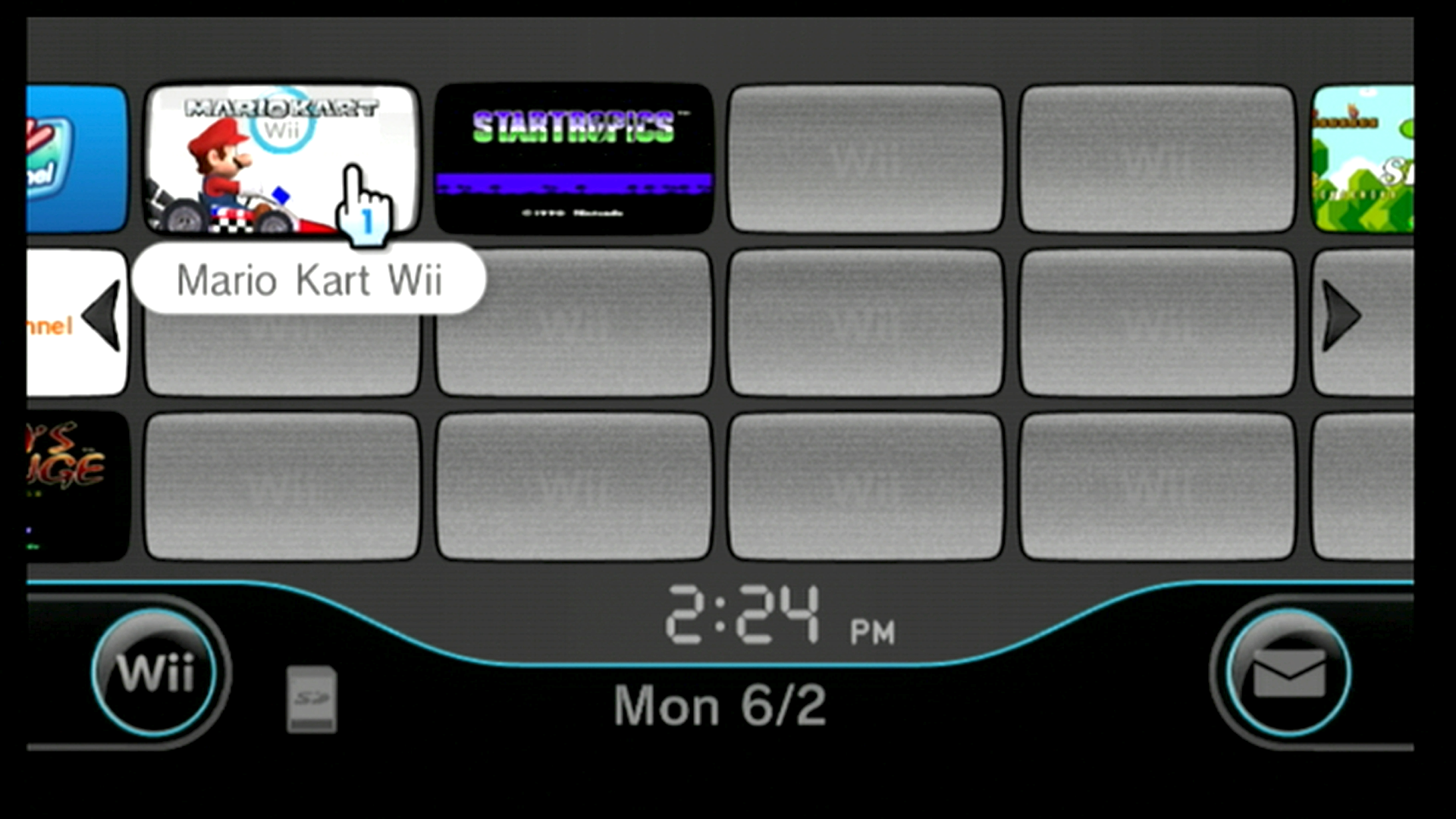
Creating Wii Game Shortcuts
This guide provides instructions on how to create Wii game shortcuts for game backups that you have on external storage devices, using a piece of software called WiiGSC (Wii Game Shortcut Creator). By creating game shortcuts, you can launch a game backup directly from the Wii Menu as if you had inserted the game as a regular disc.
INFO
Important Information
- Your browser or antivirus software may flag WiiGSC as malware - this is a false positive. WiiGSC does NOT contain any malware.
- The Wii Menu is limited to 48 channels, not including existing system channels.
DANGER
Important Warnings
- DO NOT continue the guide unless you have installed Priiloader AND BootMii, as this guide carries the risk of causing a banner brick which will prevent the Wii Menu from booting.
- DO NOT create and install a shortcut for the games "Mario Party 9" or "A Boy and His Blob". It will cause a banner brick due to the complexity of the channels making the Wii Menu crash.
- If you get an error saying
The system files are corrupted, you are likely dealing with a banner brick. To fix it, turn off your Wii, then boot into Priiloader using one of the available methods for your console. Enter the Homebrew Channel and launch your WAD manager or YAWM ModMii Edition to uninstall the WAD that caused the error. If Priiloader was not installed, proceed to BlueBomb for further resolution.
Requirements
- A Wii
- An SD or USB drive
- A Windows computer
- YAWM ModMii Edition
- WiiGSC ModMii Edition
Instructions
Section I - Creating a Channel
Extract the WiiGSC
.zip, findWiiGSC.exe, and launch it. The first launch will prompt you about common key creation and provide a disclaimer - simply click through these windows.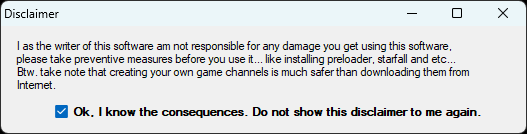
With WiiGSC open, select
Open WBFS Driveand select the drive letter for the device containing your WBFS files. Alternatively, you may select an individual ISO/WBFS file.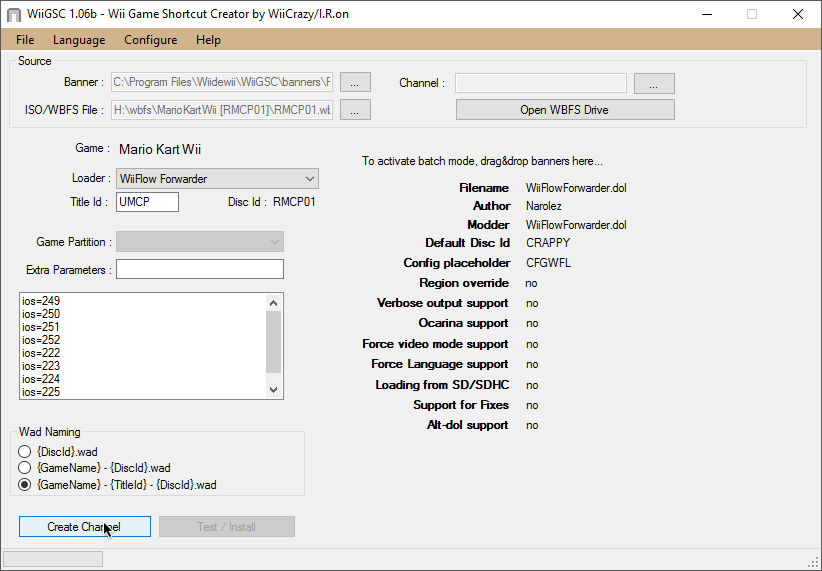
Select the game you would like to create a channel for, and then press
Use for Channel Creation. Select the USB loader that you will use to launch the game, and then pressCreate Channellocated in the bottom left corner.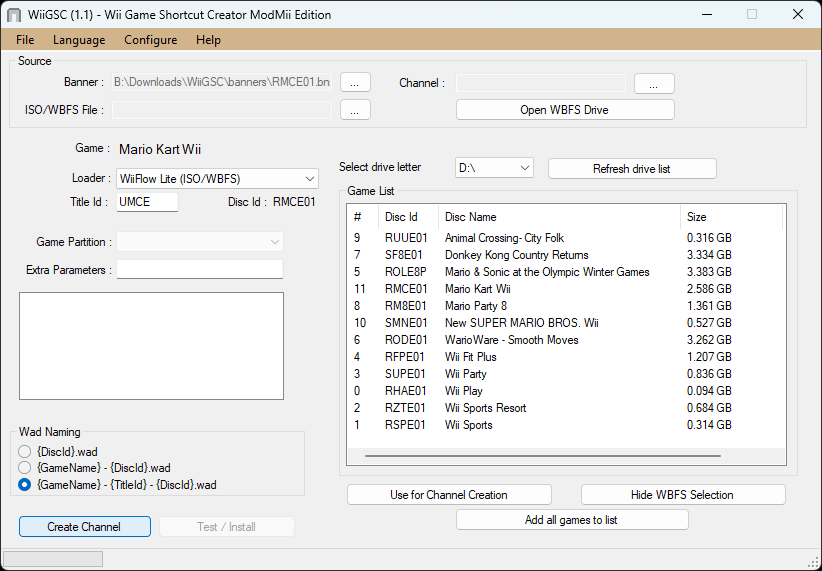
Copy the output WAD to your SD card or other device used to load homebrew.
Section II - Installing Channel
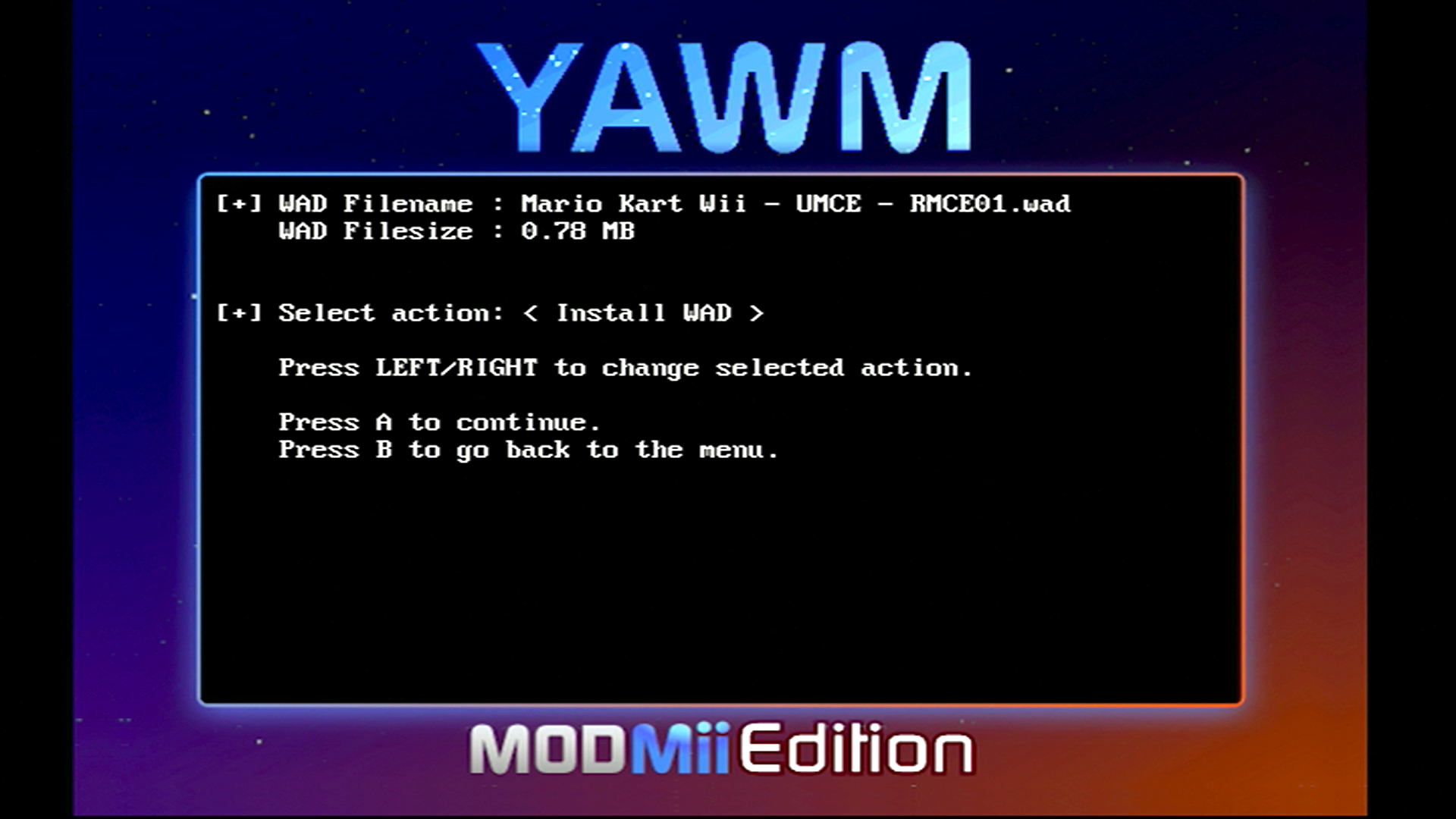
Open your WAD manager and locate the output WAD, then install it.
If successful, you should now see your game shortcut on the Wii Menu!