Installing the Homebrew Channel on vWii
This page will guide you through the process of installing the Homebrew Channel onto the vWii menu.
INFO
You can use the same SD Card that you initially used to mod your Wii U for this process.
WARNING
If you haven't already, make sure you created a NAND backup and have the Aroma Environment installed on your Wii U.
If you do not have Aroma installed, proceed to Installing Aroma or Modding the vWii without modding the Wii U side.
요구 사항
- A Wii U
- The Aroma Environment (should be installed from previous step)
- The latest release of the Compat Title Installer (
compat_installer-Aroma.zip) (should be installed from previous step) - The Enhanced vWii Aroma Plugin (
evwii.wps) (optional)
DANGER
If the evWii Aroma plugin is not installed and a homebrew app crashes/hangs, the only way to shut off the Wii U is by pulling the power cord. In some cases, pulling the power cord can cause memory corruption; therefore, it is highly recommended to have the plugin installed.
지침
섹션 I - 파일
- Wii U의 SD 카드를 PC에 연결합니다.
- Copy
compat_installer.wuhbfile fromcompat_installer-Aroma.ziptowiiu->appsof your SD Card. - Copy
evwii.wpsfile towiiu->environments->aroma->pluginsof your SD Card. - SD 카드를 Wii U에 다시 연결하세요.
Section II - Booting into Aroma
Next steps will differ based on whether or not your Wii U is configured to autoboot into Aroma. If you can see the vWii Compat Installer upon booting your Wii U, you are in the Aroma environment and should proceed to Section III. Otherwise, use the below two methods to boot into Aroma.
Procedure for Wii Us with PayloadLoader
If you have previously modded your Wii U and have PayloadLoader installed, you should be able to launch the Health and Safety Information App to load into the Aroma environment.
Procedure for Wii Us without PayloadLoader
WARNING
If you get any errors like FSOpenfile failed, FSGetMountSource failed, or SD Mount failed, refer to the browser errors in Common Issues and Fixes.
If you DO NOT have PayloadLoader installed, you will need to utilize the browser exploit to launch into the Aroma environment. For users that would like to forego fully modding their Wii U, follow these steps.
인터넷 브라우저를 실행하고
wiiuexploit.xyz웹사이트로 이동합니다.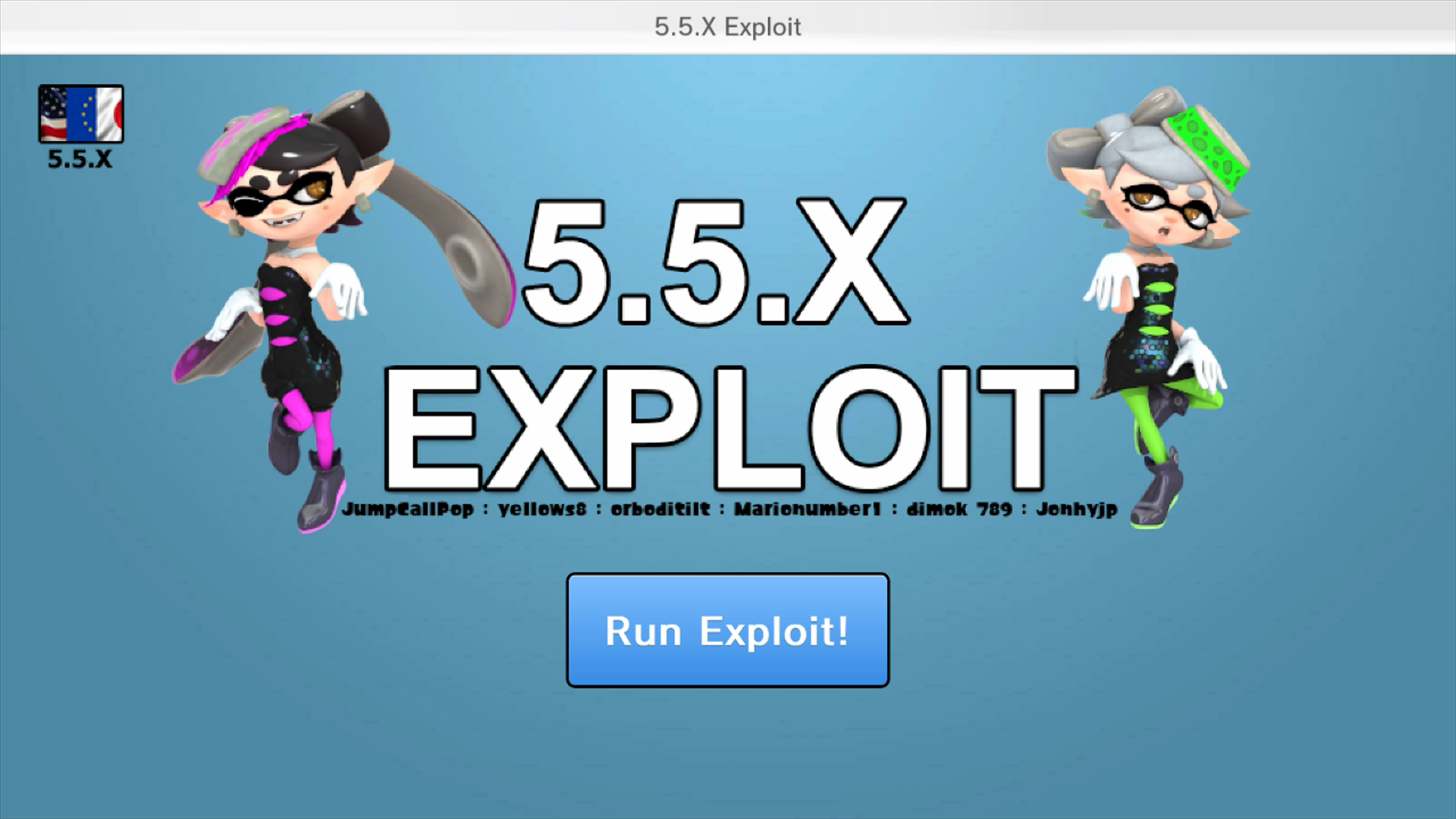
Click on
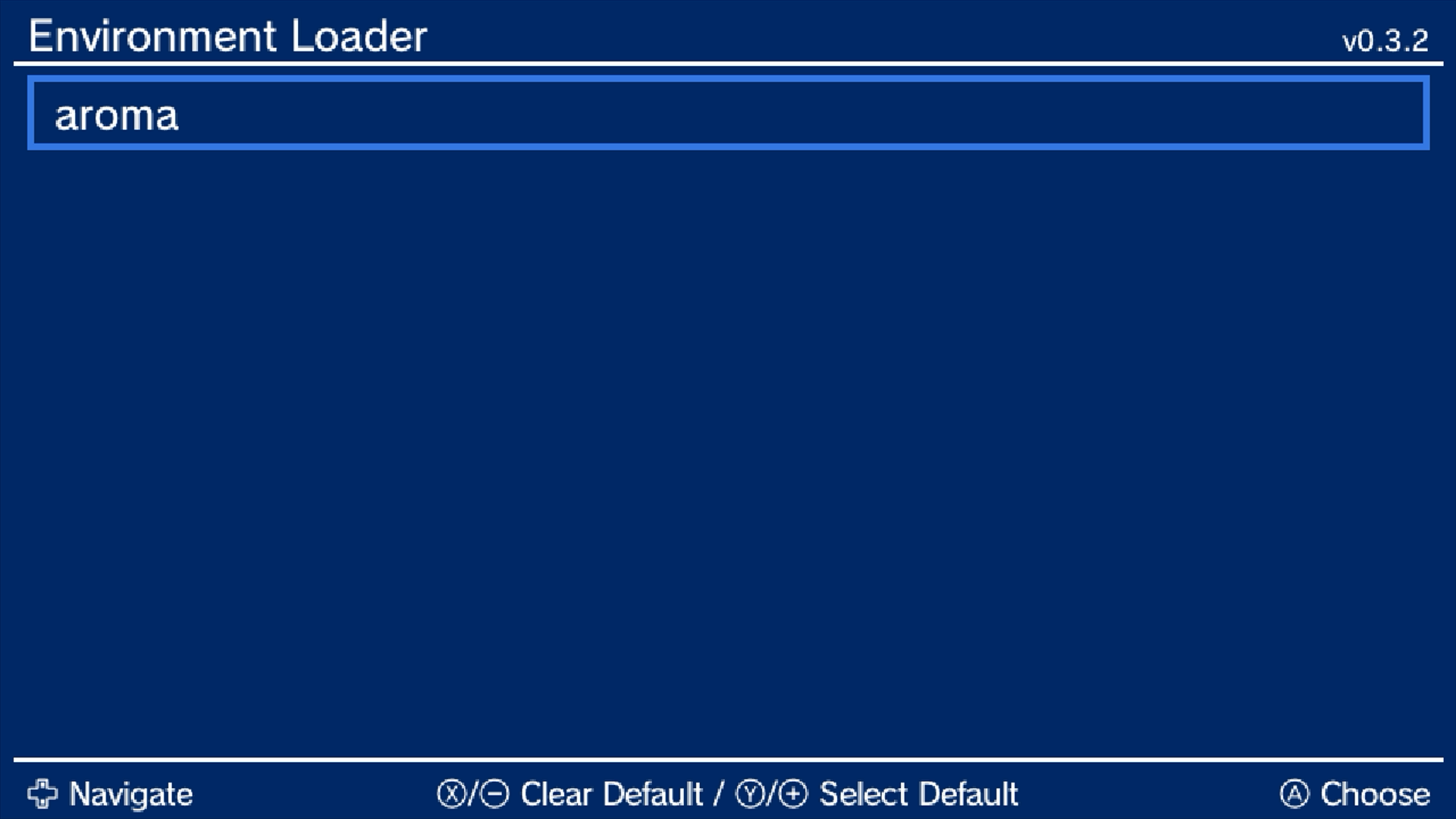
Run Exploit!and hold the X button until you see the EnvironmentLoader. Once you are inside the EnvironmentLoader, selectaromato launch the Aroma environment.- Wii U의 화면이 흰색이나 멈춘 상태로 멈춘 경우, 몇 초간 기다려 봅니다. 아무 일도 일어나지 않으면 콘솔을 재부팅하고 브라우저 저장 데이터를 재설정한 다음 다시 시도합니다.
- If you see a
Please choose your payloadscreen, you should try again and ensure that you are holdingXlong enough. Do not hold theBbutton.
If you get a warning message about the update folder existing, press the
Xbutton to block updates and proceed.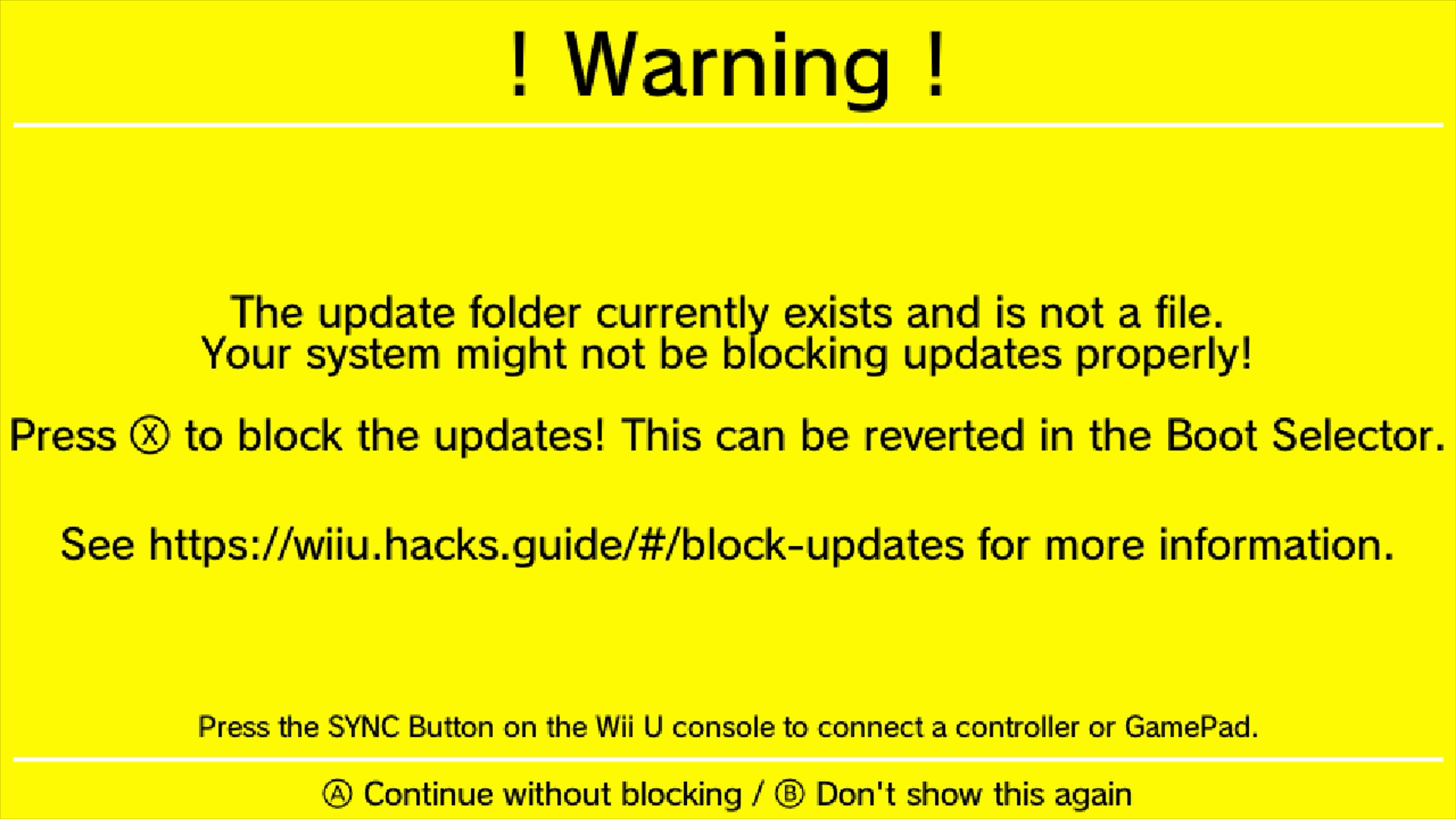
In the Boot Selector, press
Ato launch the Wii U Menu.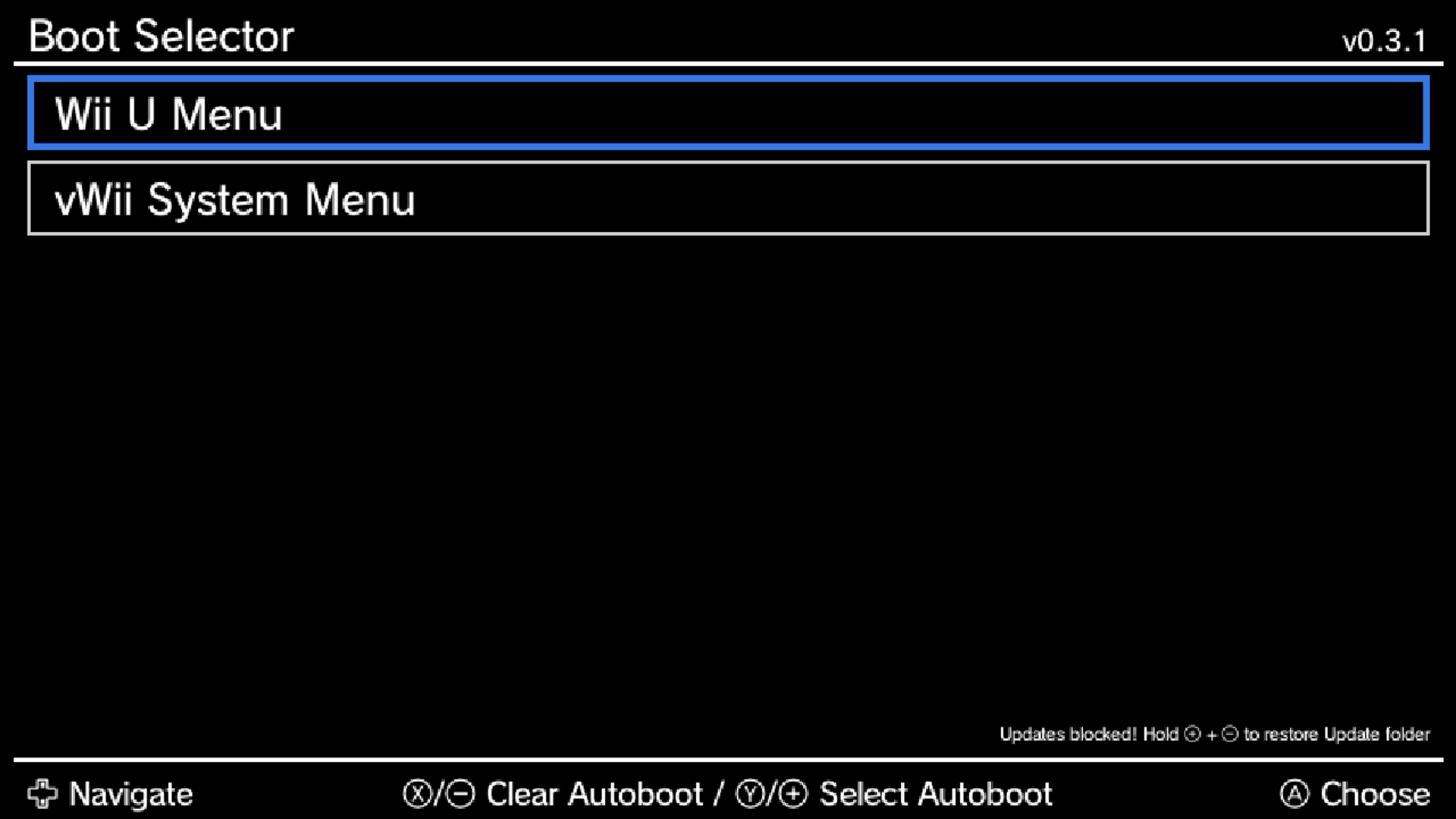
Section III - Installing the Homebrew Channel
TIP
On Step 3, if the HOME button doesn't work, or causes you to freeze on a solid color screen, you can safely power off the console by holding down the power button on your console. Then, turn the console back on and proceed as normal.
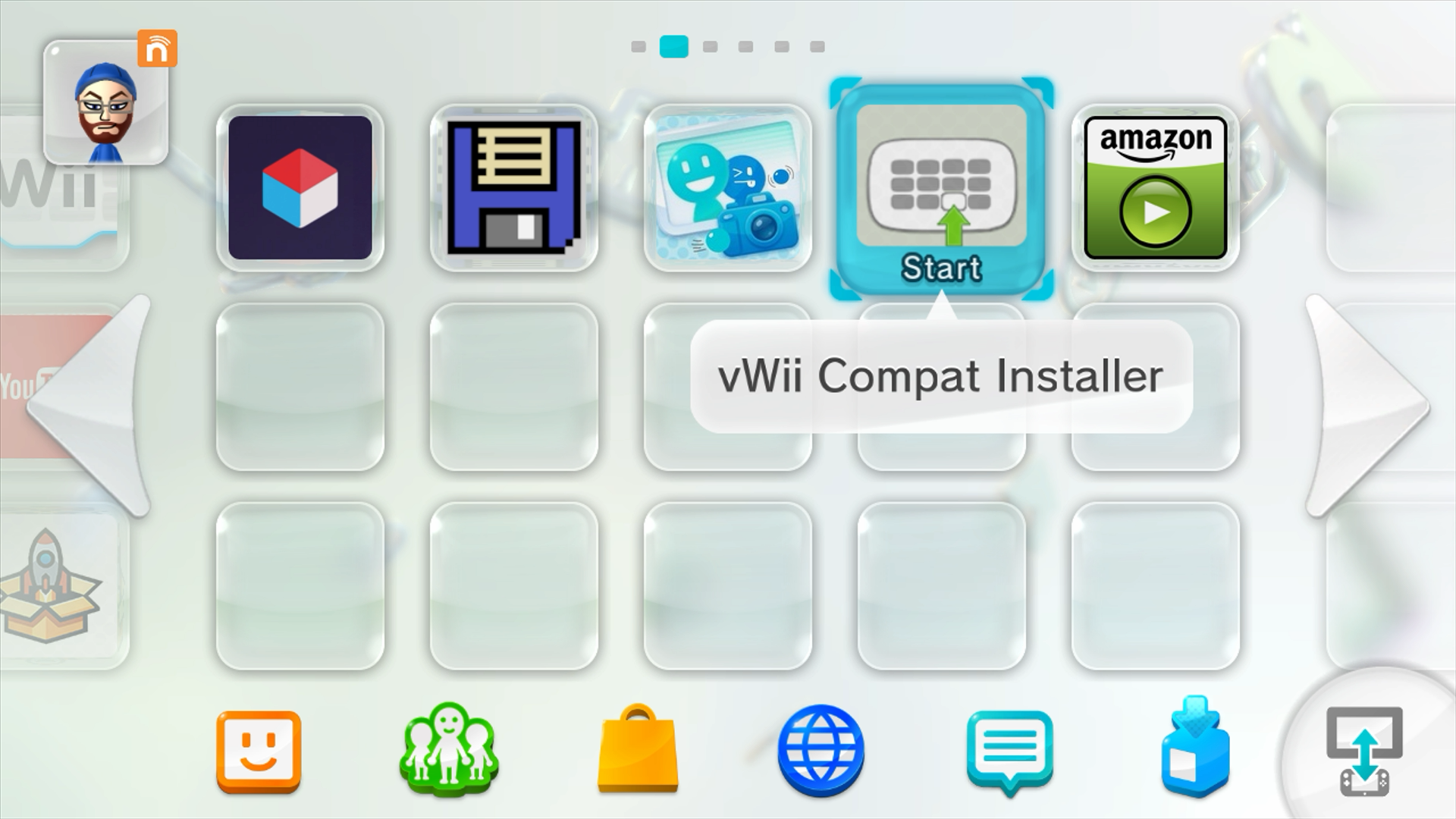
Launch the vWii Compat Installer app from the Wii U Menu.
Press
Ato install the Homebrew Channel.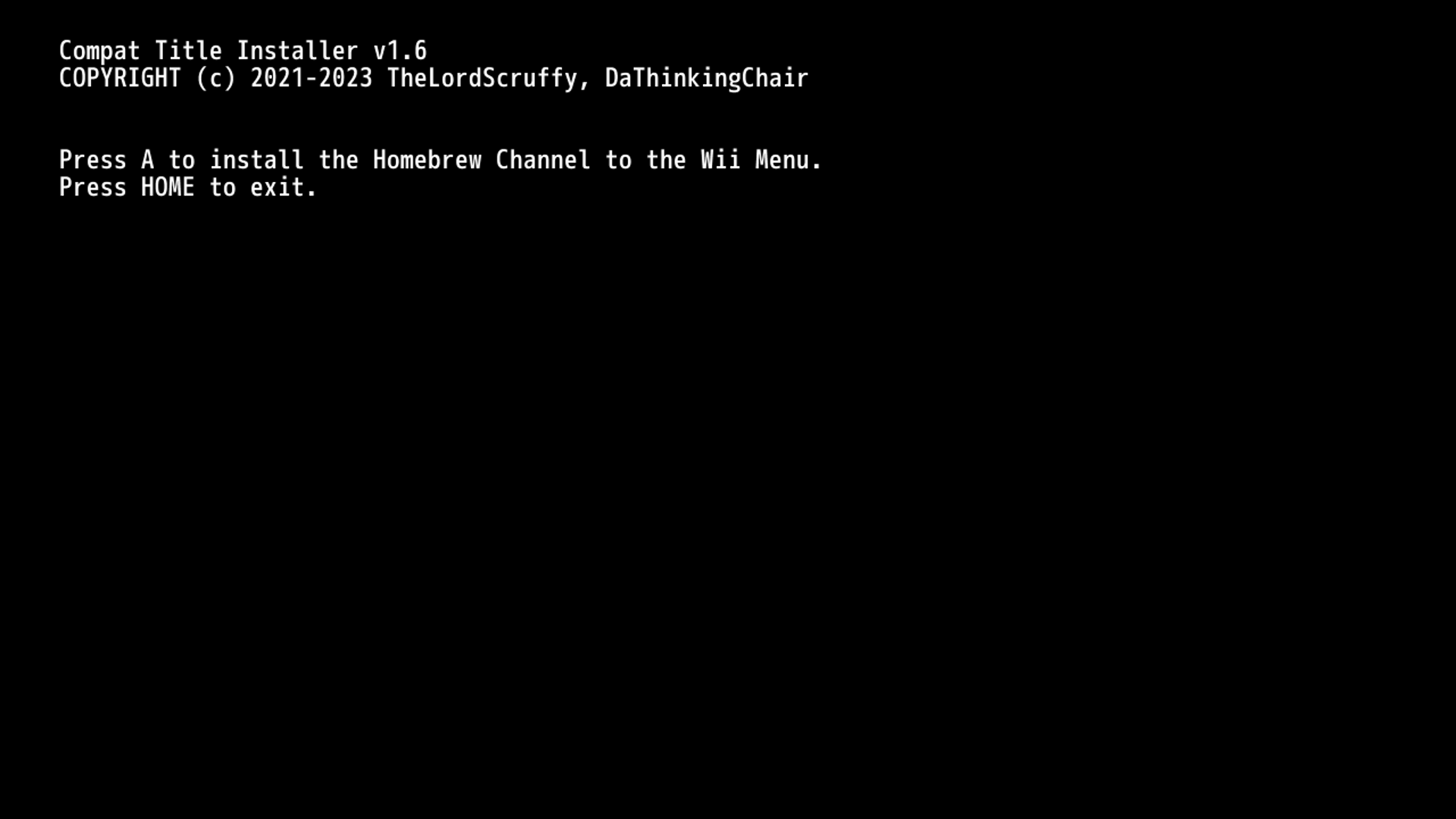
Allow the Homebrew Channel to install, until you see
Install succeeded!. Once installation has finished, press the HOME button to return to the Wii U Menu.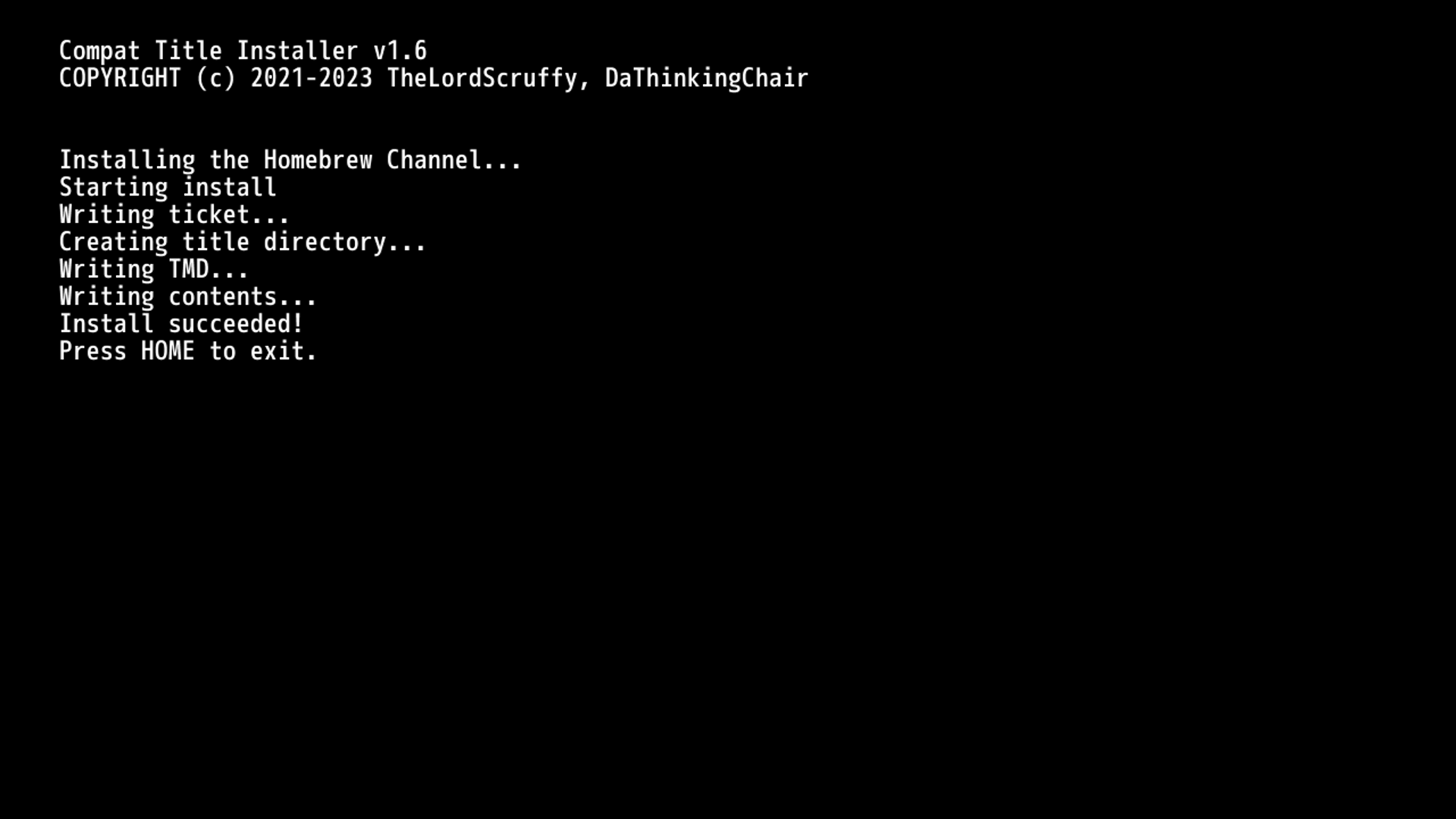
vWii (Wii 메뉴 아이콘)를 실행합니다.
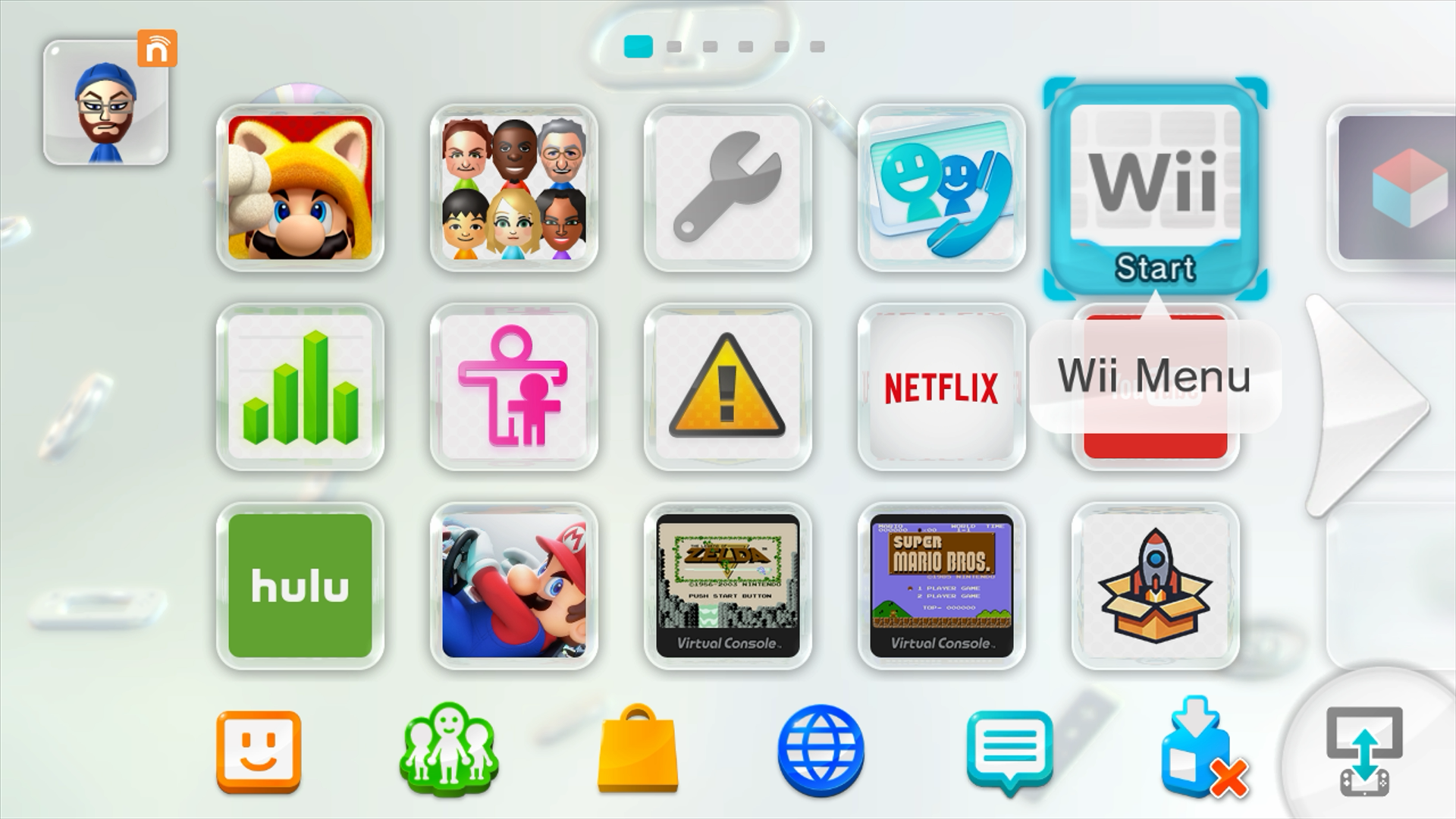
If the installation has succeeded, you should now see the Homebrew Channel in your Wii Menu.
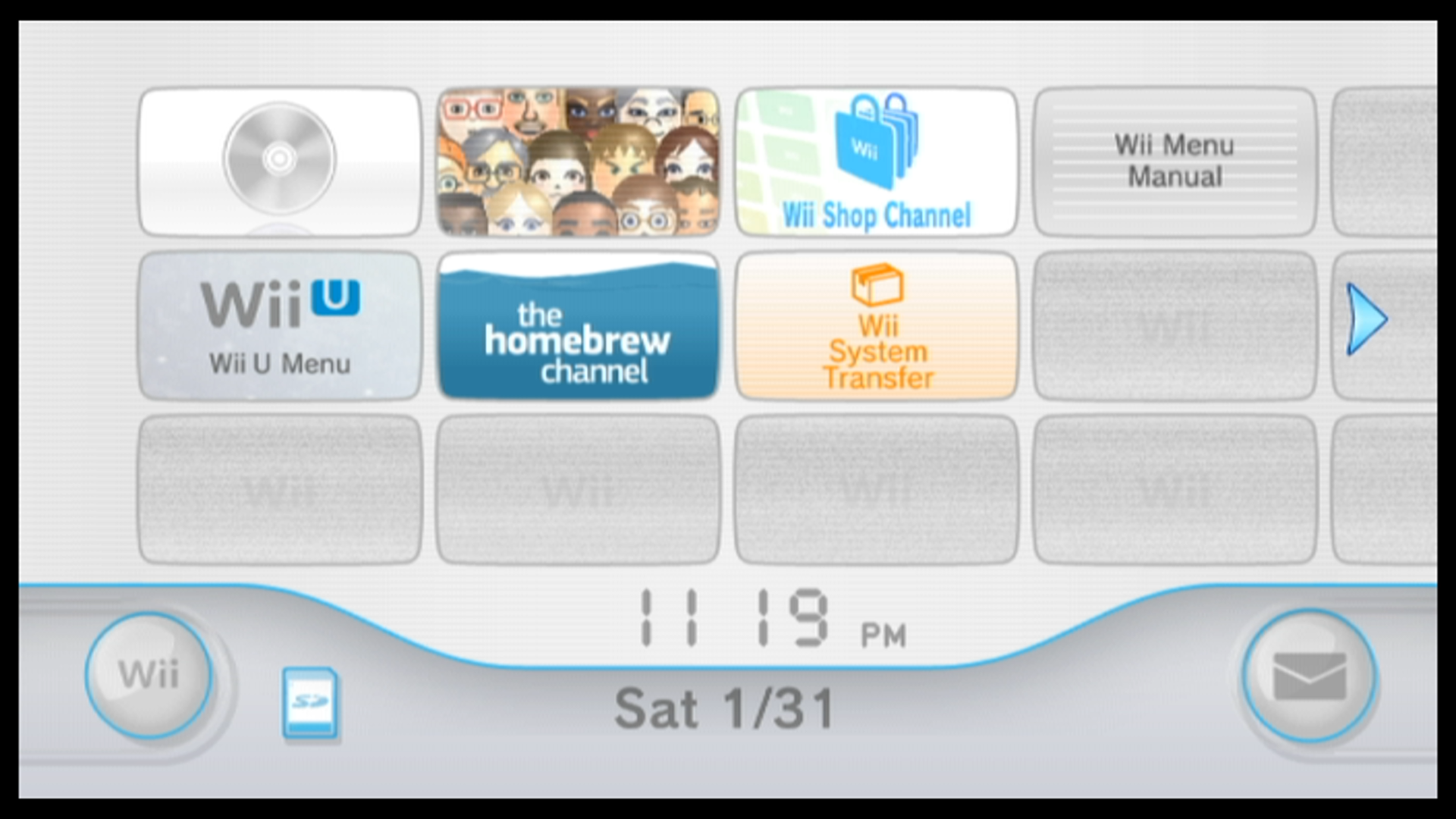
Required Reading for Homebrew Management
이제 홈브류 채널을 사용하여 Wii 홈브류 앱을 실행할 수 있습니다.
참고: SD 카드나 USB 드라이브에 Wii 홈브류 응용 프로그램을 설치할 때 폴더 구조는 다음과 같아야 합니다:
💾 SD Card
 ┗ 📁 apps
   ┣ 📁 AppName1
   ┃ ┣ 📄 boot.dol
   ┃ ┣ 📄 meta.xml
   ┃ ┗ 📄 icon.png
   ┗ 📁 AppName2
     ┣ 📄 boot.dol
     ┣ 📄 meta.xml
┗ 📄 icon.pngAppName1과 AppName2는 플레이스홀더 이름입니다. apps 폴더 자체 내에 여러 개의 apps 폴더를 중첩하지 마세요.
Please note that the apps folder inside of the wiiu folder (for Wii U homebrew apps) and the apps folder on the root of the SD card (for Wii homebrew apps) are distinct.
TIP
Although BootMii cannot be installed on vWii, Priiloader adds a crucial level of brick protection, and is highly recommended to install.