Updating Wii Menu to v4.3
This tutorial will explain how to update your Wii Menu to version 4.3, if you have already homebrewed your Wii.
WARNING
It is much safer to use ModMii (Windows only) to update your Wii to 4.3.
Requirements
- a Wii with The Homebrew Channel 1.0.8 or later
- If you do not have the Homebrew Channel or it is out of date, please start here to (re)install it first.
- An SD card or USB drive
- A Windows/macOS/Linux computer
- NUSGet
- Priiloader
- YAWM ModMii Edition
Instructions
Section I - Downloading
On your computer, download NUSGet using the link above, choosing the archive corresponding to your operating system. For Windows users, you should choose the
NUSGet-Windows-x86_64-bin.zipfile.Unzip the archive and run the NUSGet executable.
Go to
System->0000000100000002 - System Menu->Your Regionand then select the latest 4.3 version of the menu (e.g.v513 4.3Ufor USA). UncheckKeep encrypted contents, then clickStart Download.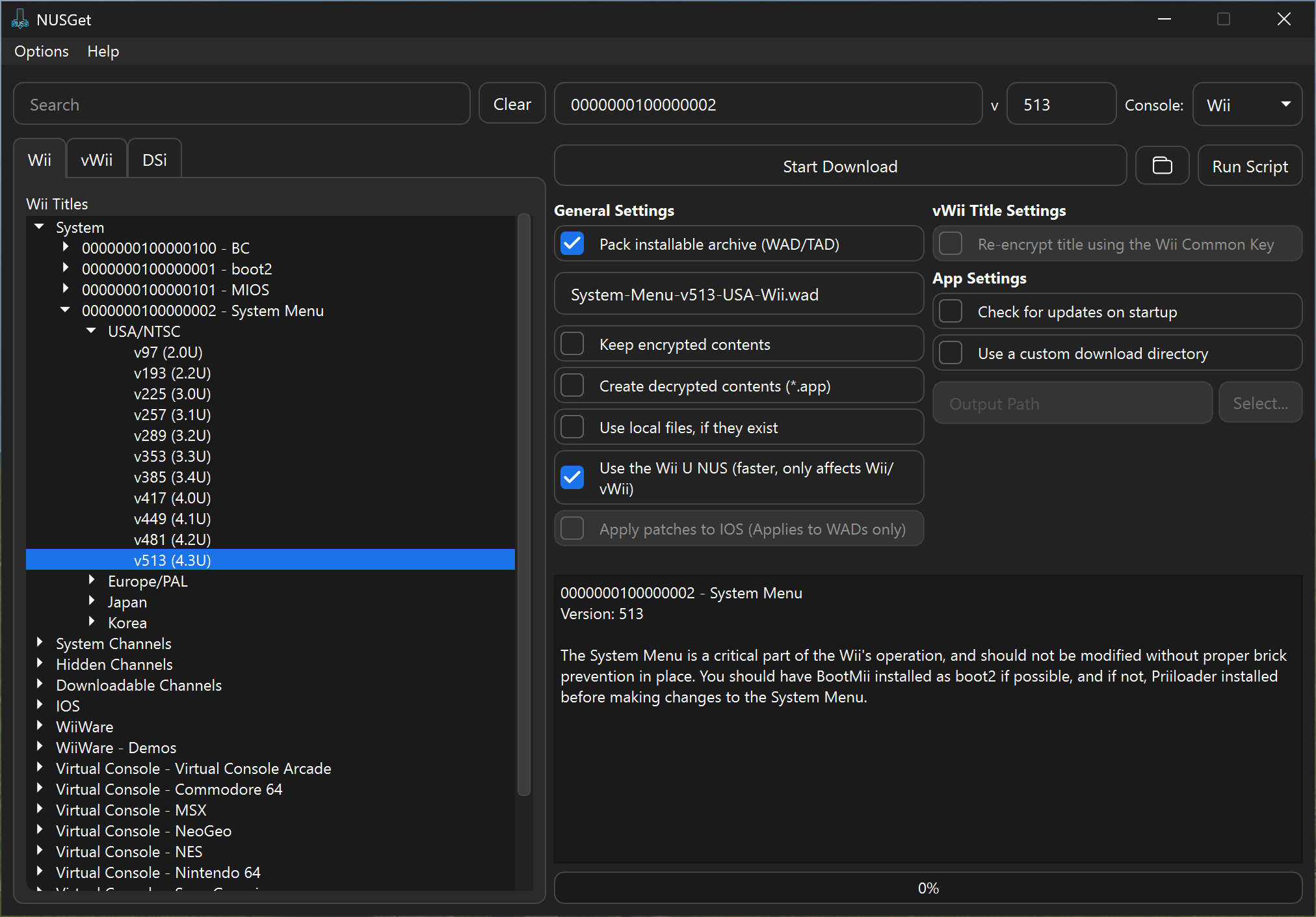
Go to
IOS->000000010000003A - IOS 58->World->Latest Version. UncheckKeep encrypted contents, then clickStart Download.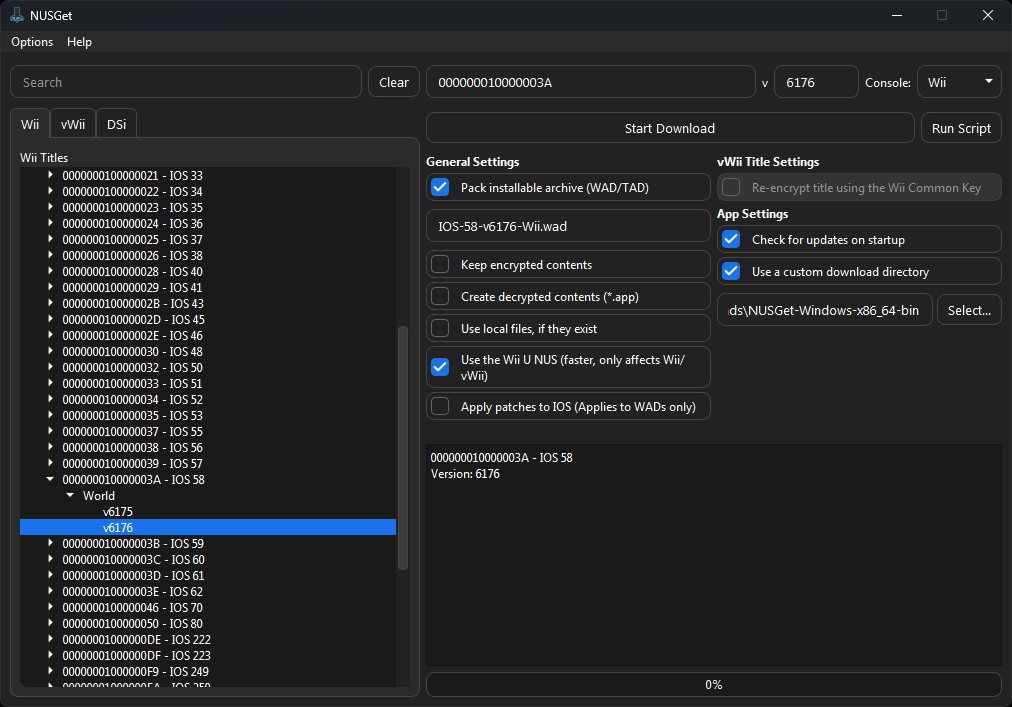
Go to
IOS->0000000100000050 - IOS 80->World->Latest Version. UncheckKeep encrypted contents, then clickStart Download.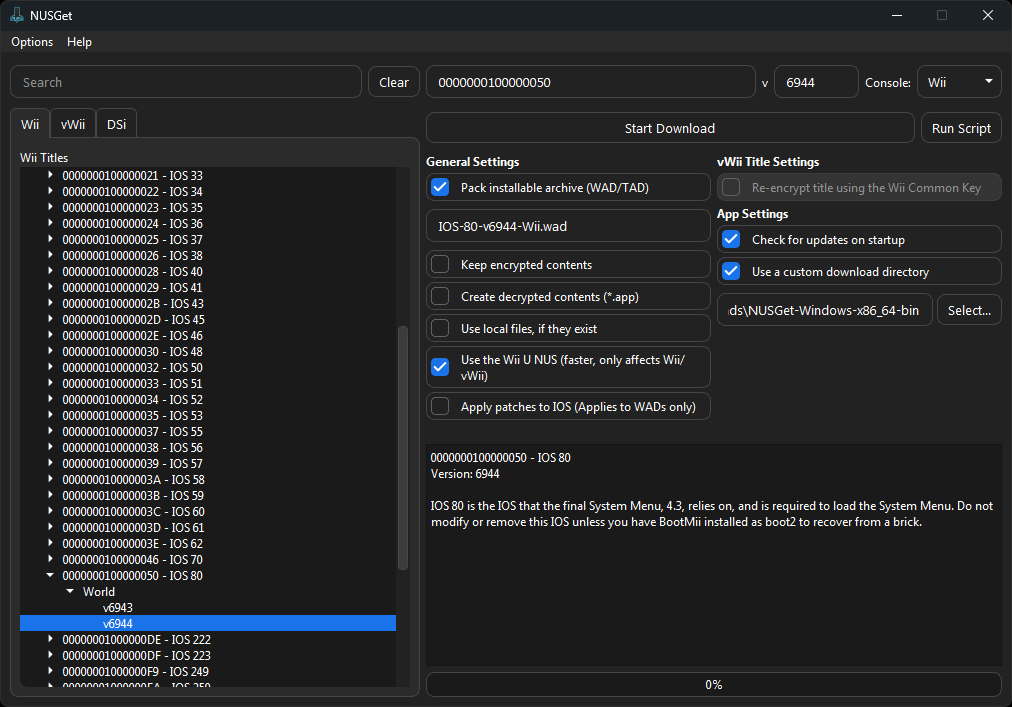
When you have finished the above steps, click the folder next to
Start Download. This will open your file manager to NUSGet's download folder.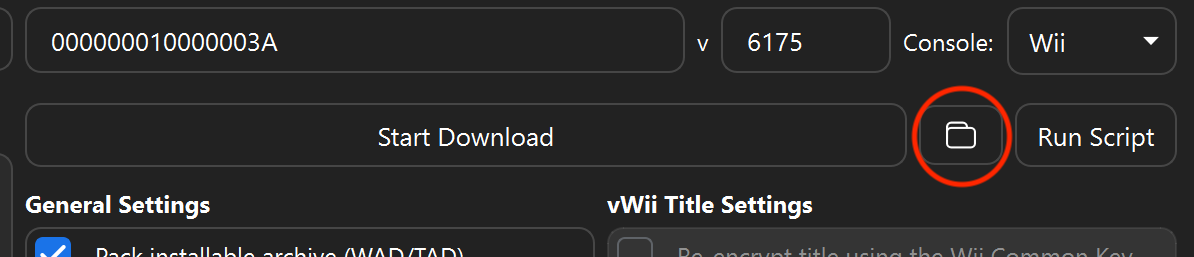
This folder should now contain three different folders with the title IDs for the downloaded IOS and Wii menu files.
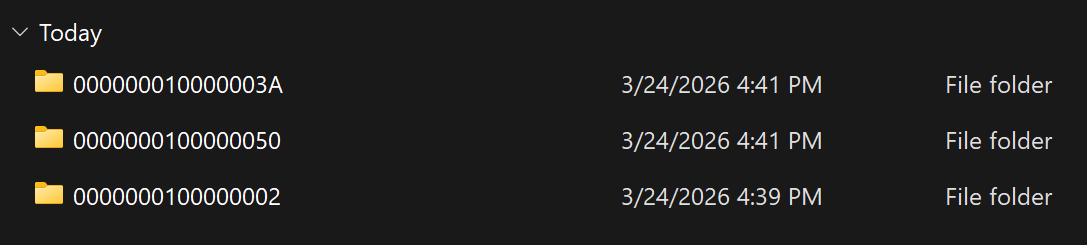
Go into the folders corresponding to the title numbers for the above, and locate the singular WAD file in each. You will need to copy these to a folder called
wadon your SD card or USB drive. The end result should include the files below in the folder: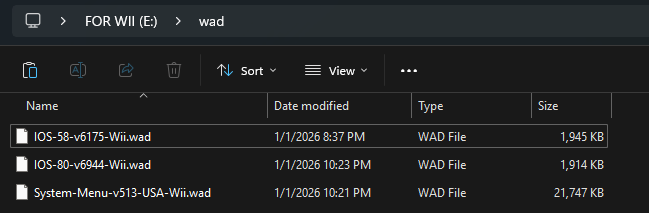
After you have copied all 3 WAD files, eject your SD card/USB drive from your PC and insert it back into your Wii.
Section II - Installing
- Power off your console. Start holding RESET, then turn it back on.
- In the Priiloader menu, select
Homebrew Channel.- If the Priiloader menu does not appear, please install it immediately. Priiloader is required for this guide.
- Launch YAWM ModMii Edition.
- Select your SD card or USB drive.
- Press + on the IOS80 and IOS58 WADs to highlight them, then press A twice to install.
- Navigate to the Wii Menu WAD and press A twice to install it.
- When prompted to retain Priiloader, press A to confirm.
- After they are successfully installed, press the HOME Button to exit back to the Homebrew Channel.