Open Shop Channel
TIP
End of Required Section
This marks the end of the required section of the main guide. You do not have to follow the guide from this point onward if you would like a standard, functioning homebrew setup.
Going forward, the remainder of the guide will show the following to get the most out of your Wii:
- Utilizing the Open Shop Channel to obtain homebrew applications
- Restoring WiiConnect24 functionality with WiiLink
- Restoring the ability to play online with Wiimmfi
- Providing a list of recommended homebrew to try out
INFO
For support (in English) with the Open Shop Channel, join Open Shop Channel on Discord.
The Open Shop Channel is a homebrew app repository created by dhtdht020, and is currently the preferred way to download homebrew.
There are two methods to use the Open Shop Channel:
- On the Wii itself, utilizing one of the following homebrew apps:
- LibreShop (preferred)
- Homebrew Browser (fallback)
- On your computer, utilizing one of the following applications:
- TinyWiiBackupManager (preferred)
- OSCDL (fallback)
Method I - Open Shop Channel on Wii
LibreShop
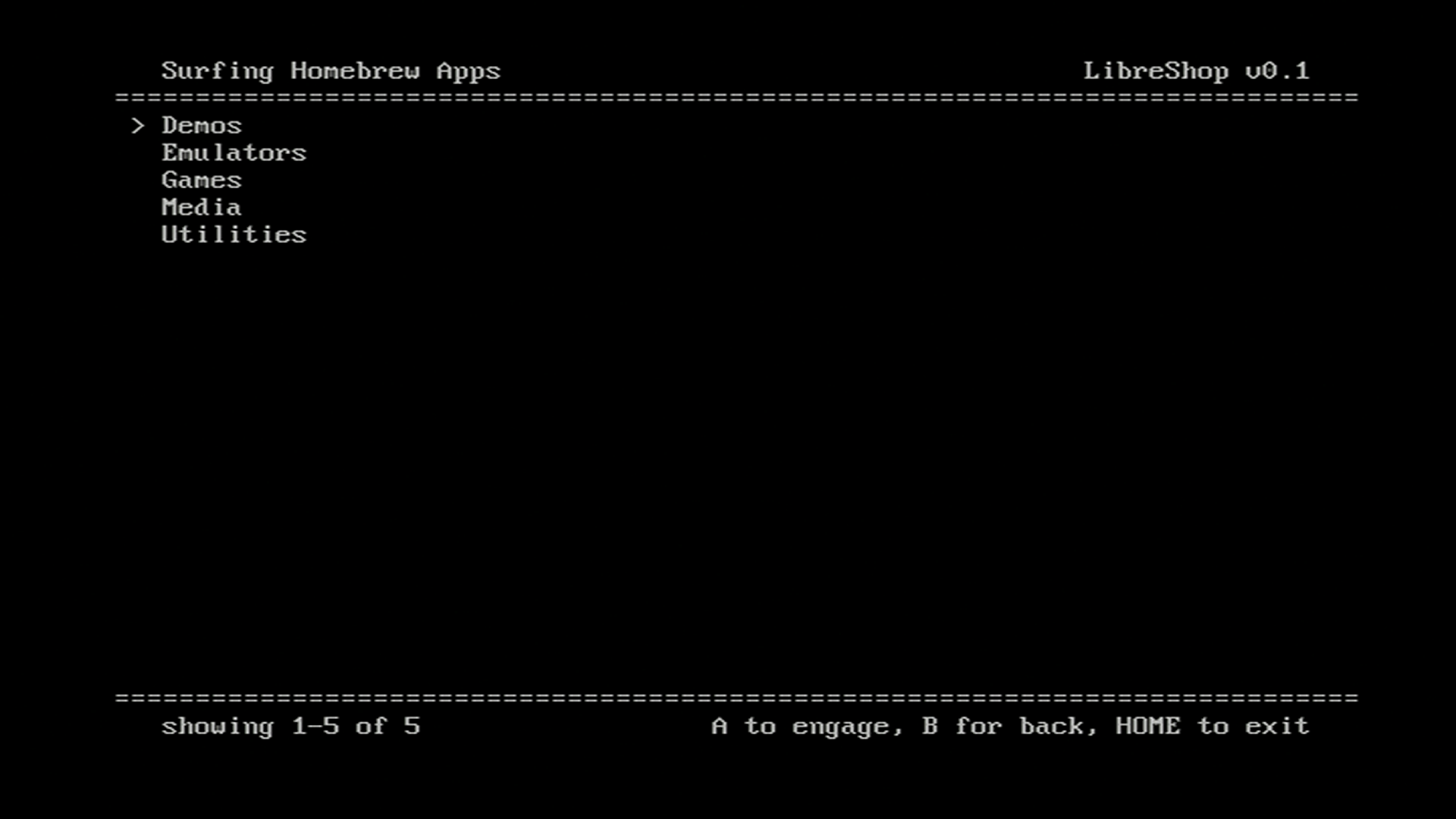
LibreShop is a text-based app repository coded from the ground up by the LibreShop team, serving as a modern and more reliable method to download homebrew on a Wii.
Requirements
- A Wii with an active Internet connection
- An SD card or USB drive
- LibreShop
Usage Instructions
Download the recommended
.zipfile from the Open Shop Channel website.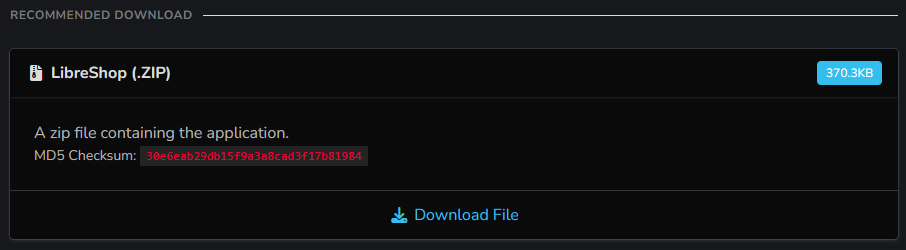
Extract the
appsfolder in the archive to the root of your SD card or USB drive.Insert your SD card or USB drive into your Wii, and go to LibreShop. LibreShop should now display.
Homebrew Browser
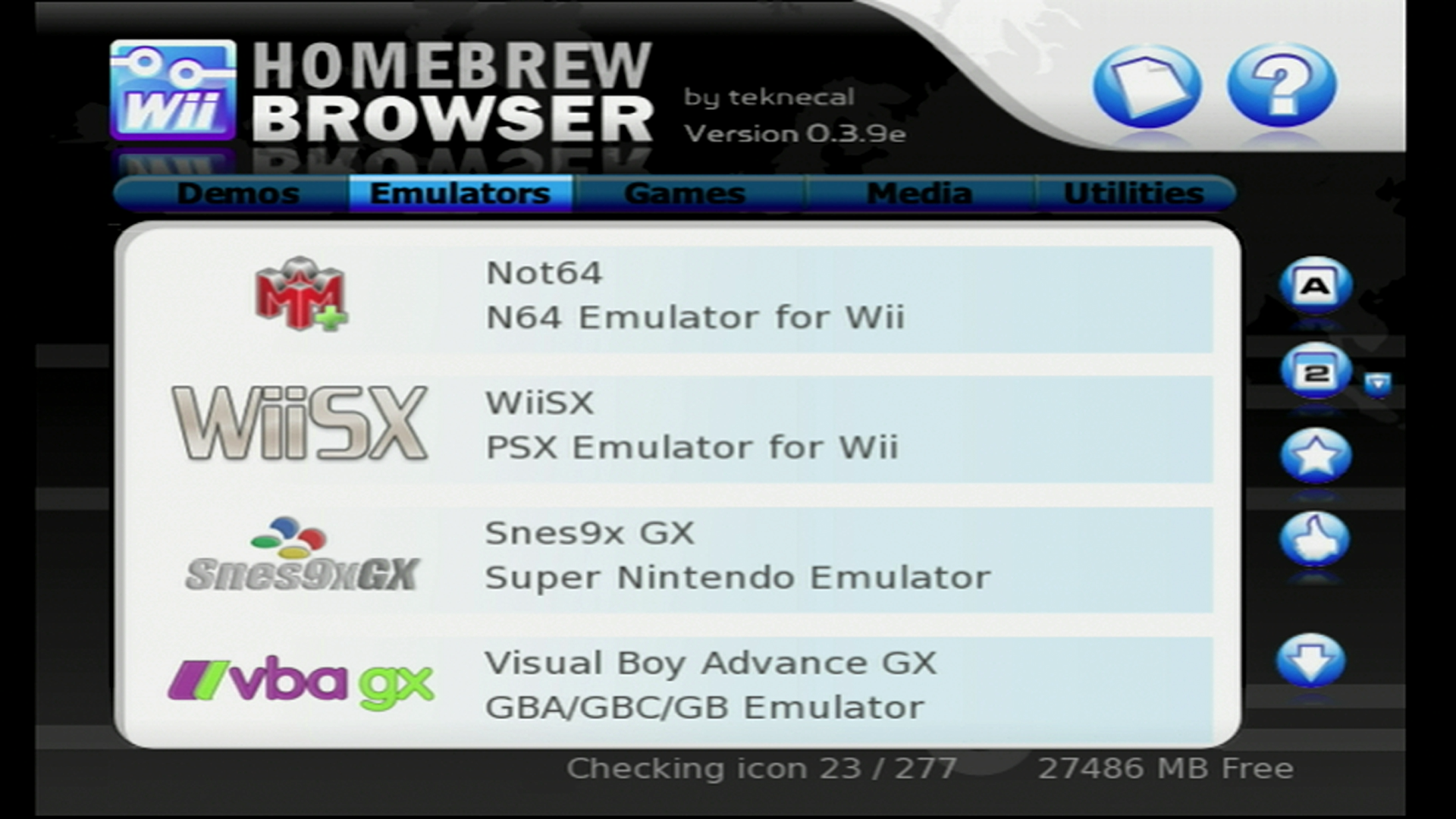
The Homebrew Browser is a graphical-based app repository for the Wii originally released in June 2008, but patched by the Open Shop Channel team to support its servers. It can be unstable, but serves as an alternative to LibreShop should the former not be usable.
Requirements
- A Wii with an active Internet connection
- An SD card or USB drive
- Homebrew Browser
Usage Instructions
Download the recommended
.zipfile from the Open Shop Channel website.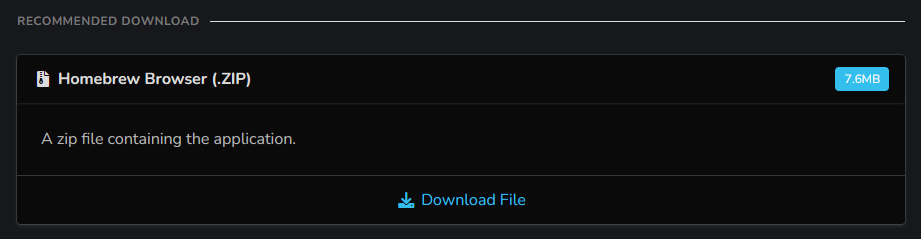
Extract the
appsfolder in the archive to the root of your SD card or USB drive. Optionally, the archive also comes with a guide on how to use the Homebrew Browser.Insert your SD card or USB drive into your Wii, and go to the Homebrew Channel. Homebrew Browser should now display.
Method II - Open Shop Channel on PC
TinyWiiBackupManager
TinyWiiBackupManager comes with a built-in app downloader for Open Shop Channel homebrew applications, and is the preferred method to download OSC apps on PC for most users due to its simplicity.
Requirements
- A Windows/macOS/Linux computer with an Internet connection
- An SD card or USB drive
- The latest version of TinyWiiBackupManager
Section I - Installation
Detailed installation instructions for TinyWiiBackupManager specific to your operating system can be found on the Managing Backups page. Once finished, proceed for instructions on using the application for the Open Shop Channel.
Section II - Usage
Insert your USB drive or SD card into your computer.
Click the hard drive icon on the bottom left of the app to select your drive. Select the root of the drive (e.g.
E:\), not the "wbfs" or "games" folder. If you have not already done so, click the shop icon to open the Open Shop Channel frontend.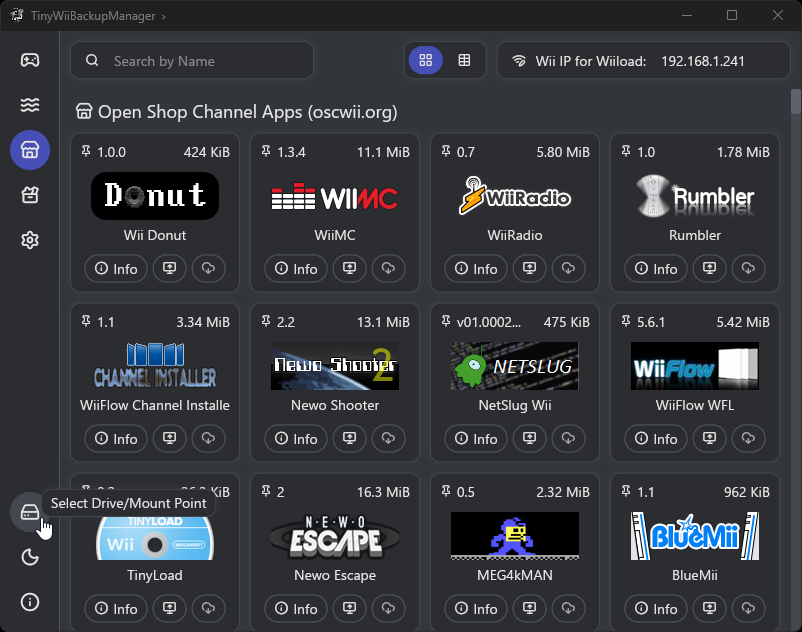
Find an application that you would like to obtain, and press the
Install appbutton. Alternatively, you can send the app directly to your Wii (this requires that your computer and Wii be on the same network).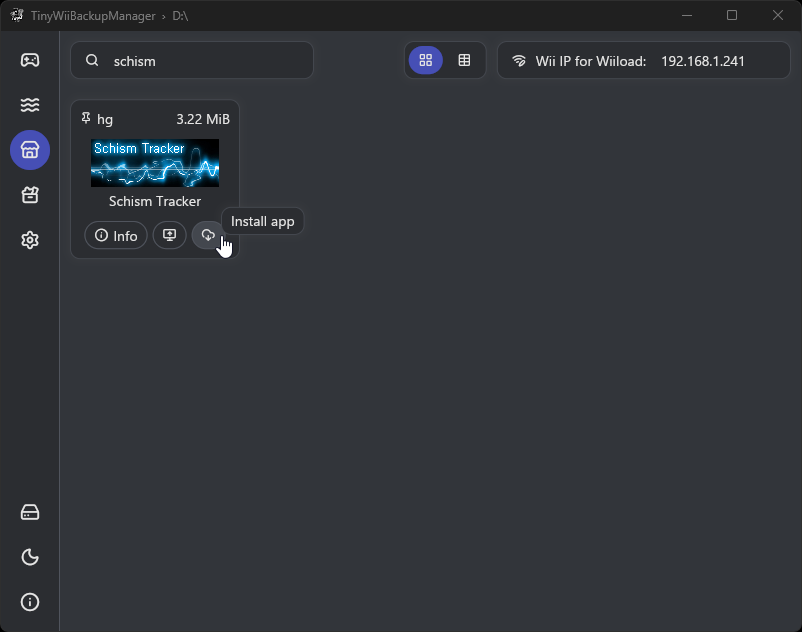
A dialog box will pop-up asking you if you would like to install the application. Press
Yes. Once the installation has finished, a message will appear in the bottom right of the application indicating that the app was installed.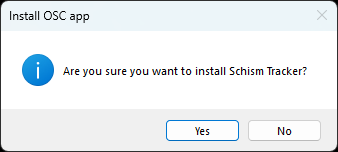
Insert your SD card or USB drive into your Wii, and go to the Homebrew Channel. Your downloaded piece of homebrew should now display.
OSCDL
OSCDL is the application officially developed by the Open Shop Channel team for usage on PC, and may appeal to power users due to its additional features. It can be used as an alternative to TinyWiiBackupManager in cases where the former will not function.
Requirements
- A Windows/macOS/Linux computer with an Internet connection
- An SD card or USB drive
- The latest version of OSCDL
Windows
Section I - Installation
INFO
You may get a Microsoft SmartScreen window. This is a false positive, ignore and run anyway.
INFO
If you get a User Account Control pop-up that asks whether or not you would like the program to make changes to your PC, select Yes. Open Shop Channel is a safe application.
Download
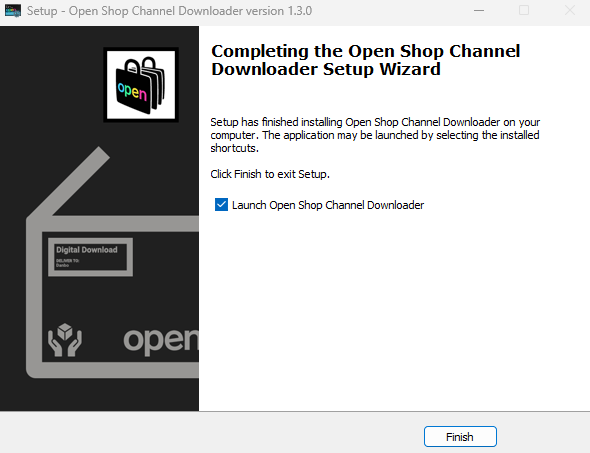
oscdl-installer.exeand run the installer. Optionally, you may instead downloadoscdl-standalone.exe, which does not have to be installed and instead runs as a portable executable.
Let the installer run, and then launch OSCDL once the process is finished.
Section II - Usage
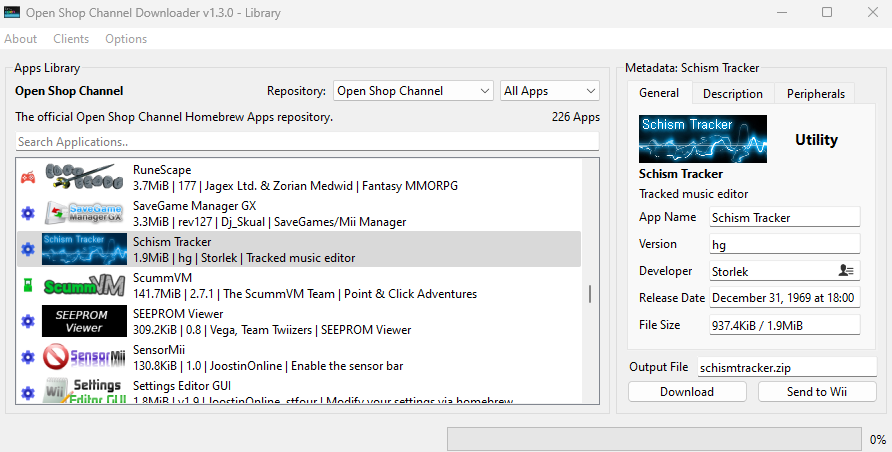
Find an application that you would like to obtain, and press the Download button. Alternatively, you can send the app directly to your Wii (this requires that your computer and Wii be on the same network).
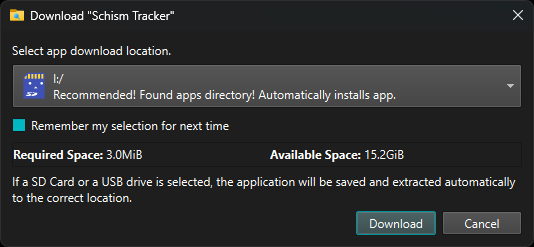
If downloaded directly, a dialog box will pop up asking you for a download location. OSCDL will prompt you if it detects a storage device with an apps folder, and if downloaded there, it will automatically unzip the homebrew and be ready to use. Otherwise, you may specify a manual download location and unzip it yourself.
Insert your SD card or USB drive into your Wii, and go to the Homebrew Channel. Your downloaded piece of homebrew should now display.
macOS and Linux
Section I - Installation
WARNING
You will need Python 3 installed in order to use OSCDL on these platforms. Please note that on certain distros, Python 3 may use either python or python3 as an alias, please be aware of this for Step 6. You will also create a virtual environment to isolate OSCDL and its dependencies from your base Python installation.
Download the source code for OSCDL, either the
.zipor the.tar.gz. Optionally, you can instead rungit clone https://github.com/dhtdht020/osc-dl.gitin the directory you would like to use OSCDL in.
If you chose to download the source code, extract the archive to a location on your computer that you would like to use OSCDL in.
Open the location of the extracted files in a terminal and run the command
python3 -m venv venvto create a virtual environment. Note that, if you receive a message thatensurepipis not available, you must install thepython3-venvpackage for your distribution. Python may provide a command for you to use to accomplish this.
Run the command
source venv/bin/activateto activate the virtual environment.
Run the command
pip install -r requirements.txt. This will download Python packages needed to run OSCDL.
Run the command
python3 oscdl.py. This will open the program. If you choose to keep the terminal open, you can usedeactivateto exit the virtual environment. Additionally note that you must runsource venv/bin/activatein the directory where OSCDL was extracted every time you open a new terminal. This is in order to load the dependencies needed to run OSCDL.
Section II - Usage
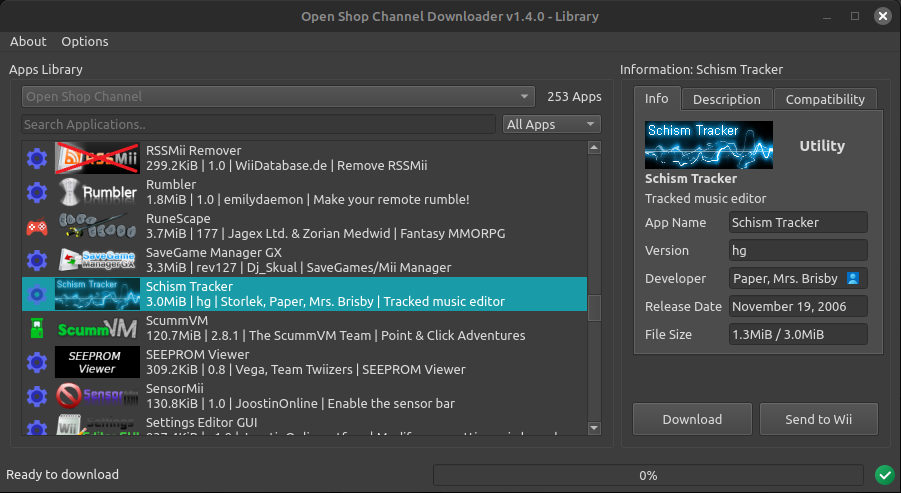
Once OSCDL is open, find an application that you would like to obtain, and press the Download button. Alternatively, you can send the app directly to your Wii (this requires that your computer and Wii be on the same network).
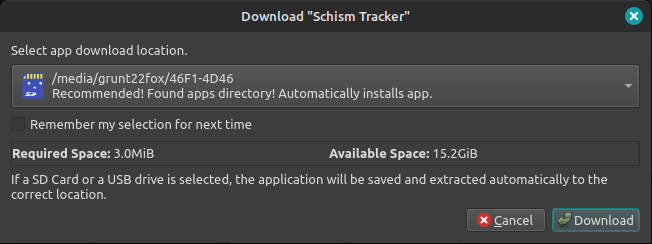
If downloaded directly, a dialog box will pop up asking you for a download location. OSCDL will prompt you if it detects a storage device with an apps folder, and if downloaded there, it will automatically unzip the homebrew and be ready to use. Otherwise, you may specify a manual download location and unzip it yourself.
Insert your SD card or USB drive into your Wii, and go to the Homebrew Channel. Your downloaded piece of homebrew should now display.
TIP
WiiConnect24 was an online service ran by Nintendo, providing functionality to apps such as the Forecast and News channels. The below guide outlines information on restoring functionality to this service.