Finalizing Setup (Wii mini)
Now that the Homebrew Channel, Priiloader, and cIOS are installed, we are going to finalize setup for your Wii mini by installing crucial apps to restore various missing functionalities of the Wii mini menu compared to a normal console. It is recommended that you download all homebrew listed below onto your storage device BEFORE starting the listed steps to save time.
Wii mini Ethernet Enable
Wii mini Ethernet Enable is a homebrew app that patches your Wii mini to support wired Ethernet adapters, allowing your console to connect to the internet where previously impossible. Only adapters with the ASIX AX88772 chipset are supported on the Wii mini. Additionally, homebrew apps that need internet will require the use of a USB hub, as the console only has a singular USB port.
Requirements
- A USB drive
- Wii mini Ethernet Enable
Instructions
Copy the
appsfolder in theWii_Mini_Ethernet_Enable.zipfile to the root of your USB drive.Reinsert USB drive into your console.
Launch the Homebrew Channel.
Launch Wii Mini Ethernet Enable from the list of homebrew.
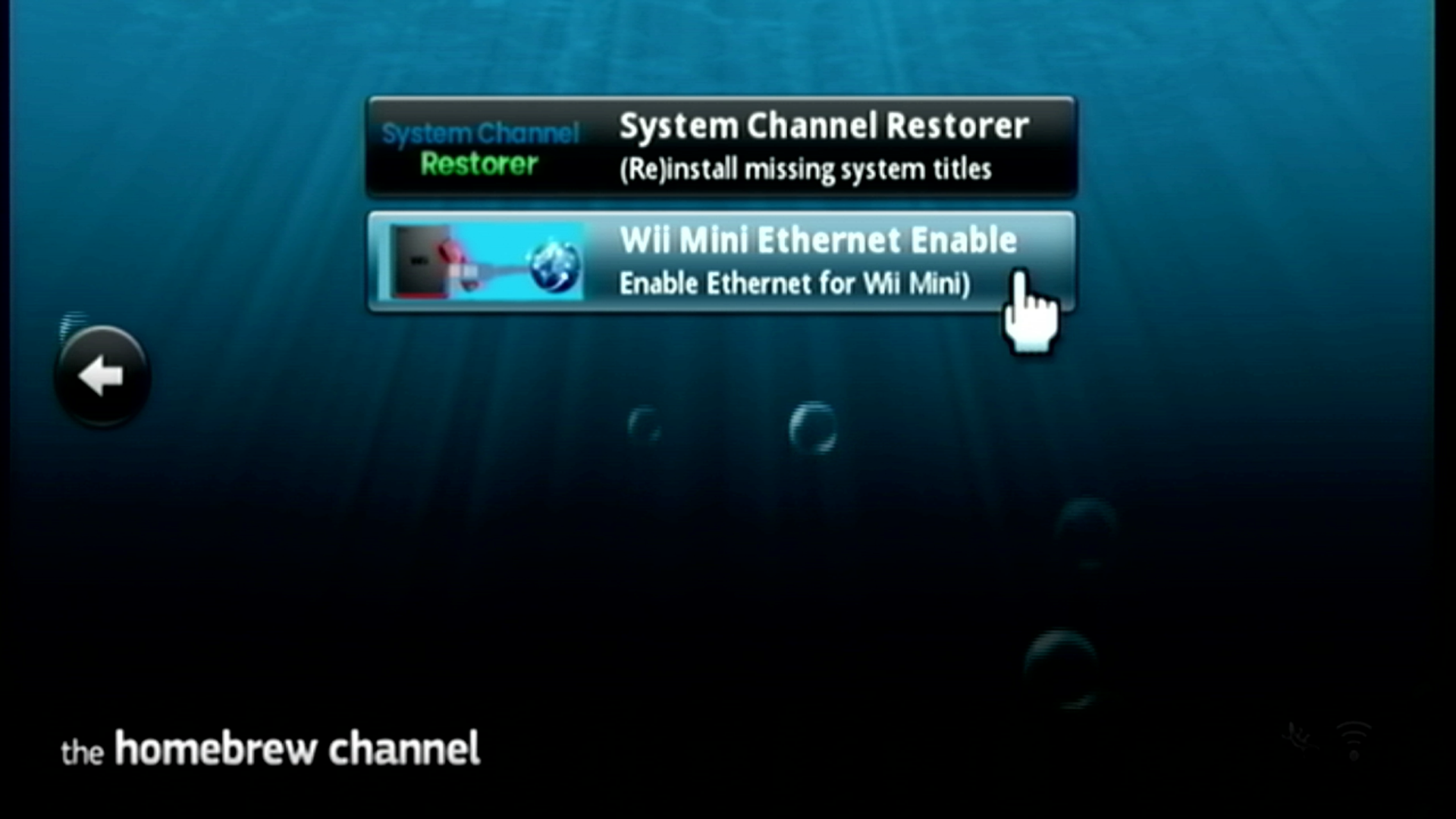
The application will launch and should output
OK.after attempting to enable Ethernet usage on your Wii mini. After this, press theHOMEbutton on your Wii remote to exit the app.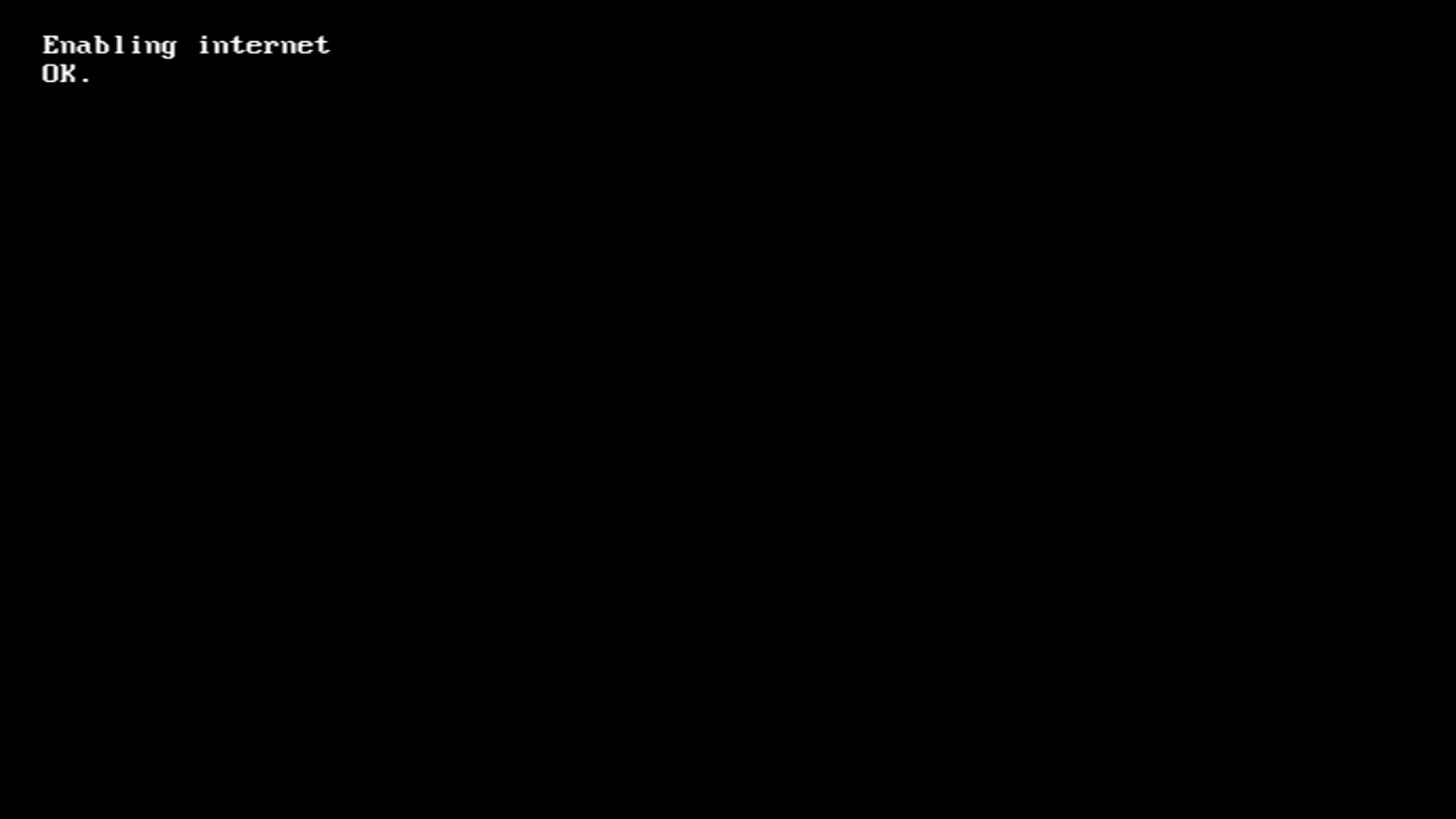
System Channel Restorer
System Channel Restorer is a homebrew app that restores channels missing from the Wii mini menu normally, such as the Wii version of the Mii Channel and Photo Channel.
Requirements
- An SD card or USB drive
- An Internet connection
- System Channel Restorer
Instructions
Copy the
appsfolder in thesystem-channel-restorer.zipfile to the root of your USB drive.Reinsert your SD card or USB drive into your console.
Launch the Homebrew Channel.
Launch System Channel Restorer from the list of homebrew.
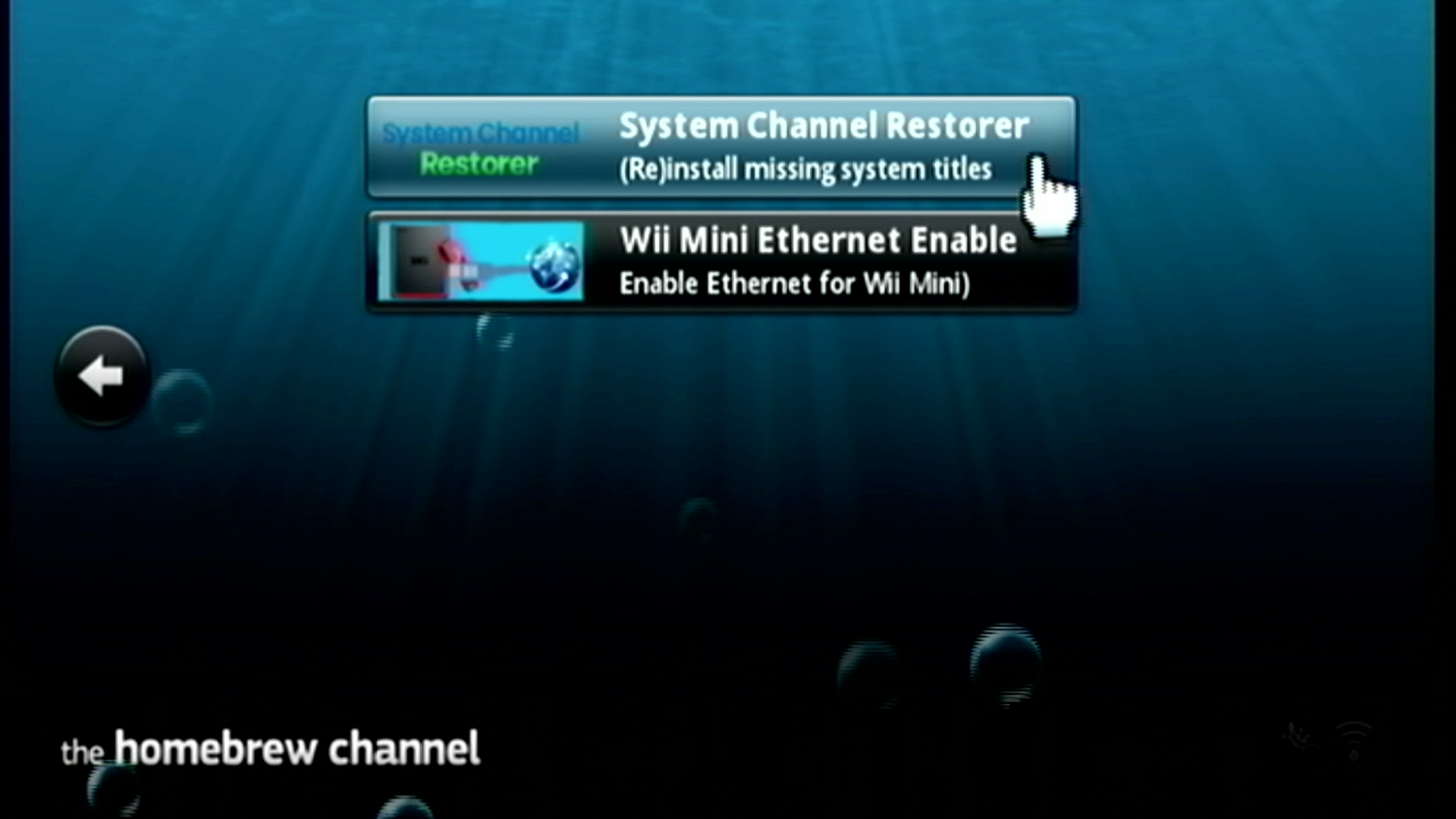
The installer will launch. If you receive -3 Failed to initialize network, ensure that your Ethernet adapter is connected properly. Most users will want to select the following channels, unless you prefer to install additional channels:
- EULA
- Mii Channel
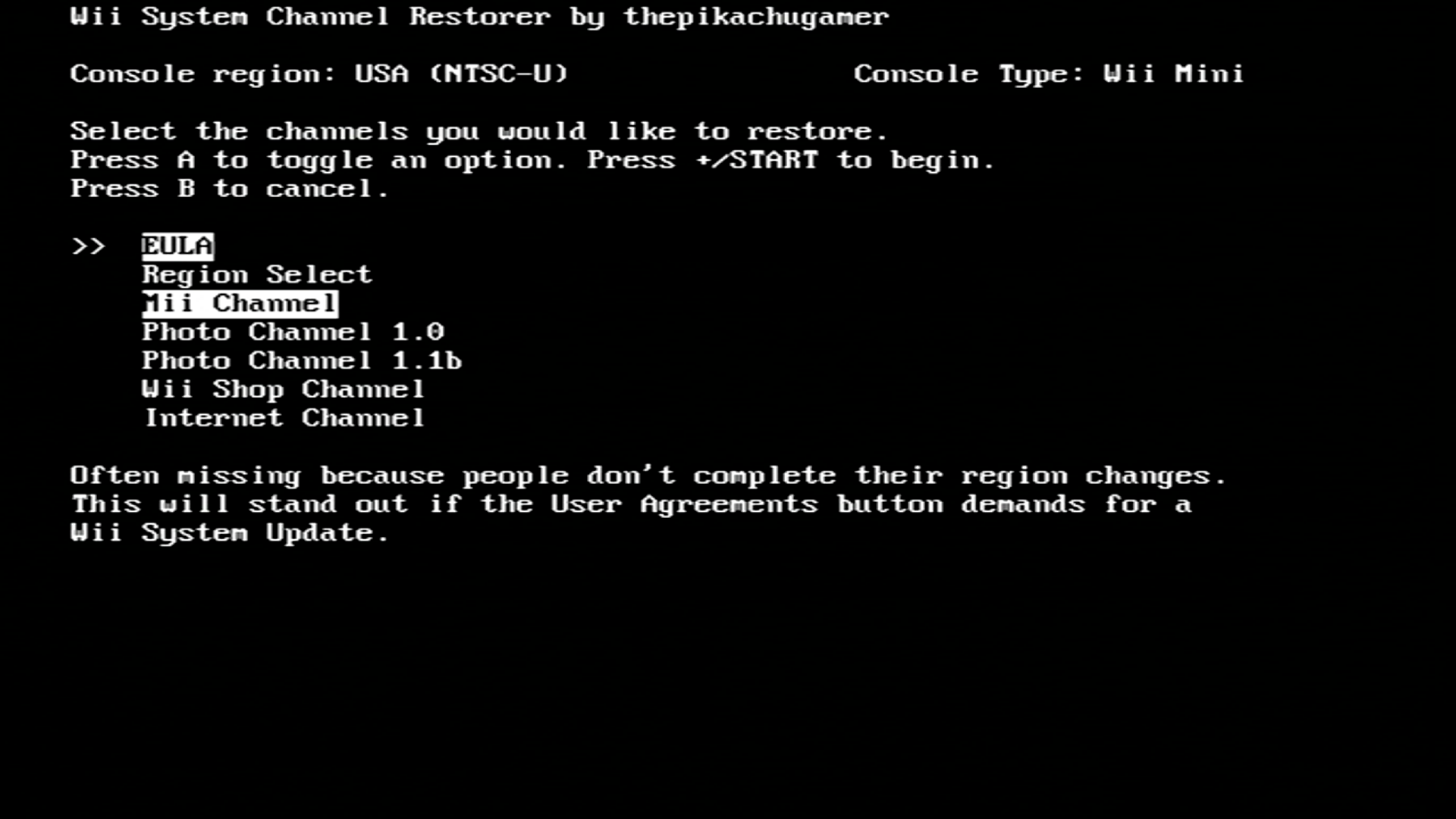
Once all channels are selected, press the
+button to begin installation.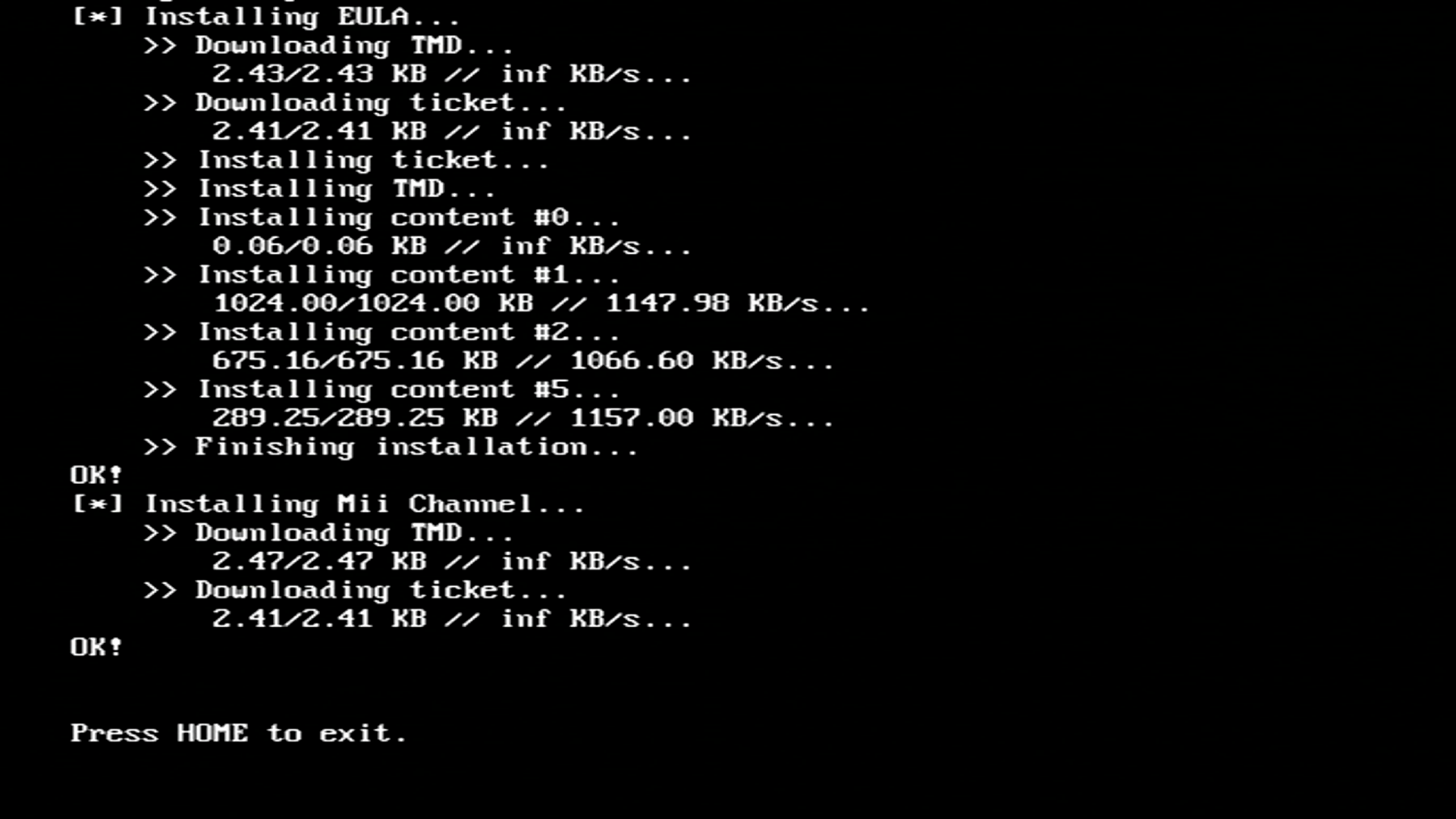
Once installation has finalized, you may return to the Homebrew Channel by pressing the HOME button.
Accepting the EULA
In order to use features like WiiConnect24, you must accept the Wii User Agreement (EULA). This can normally only be done through the Wii Settings app or the Wii Shop Channel, however you can download a forwarder to launch the EULA from the Homebrew Channel.
Requirements
- A USB drive
- EULA Loader NTSC
- EULA Loader PAL
Instructions
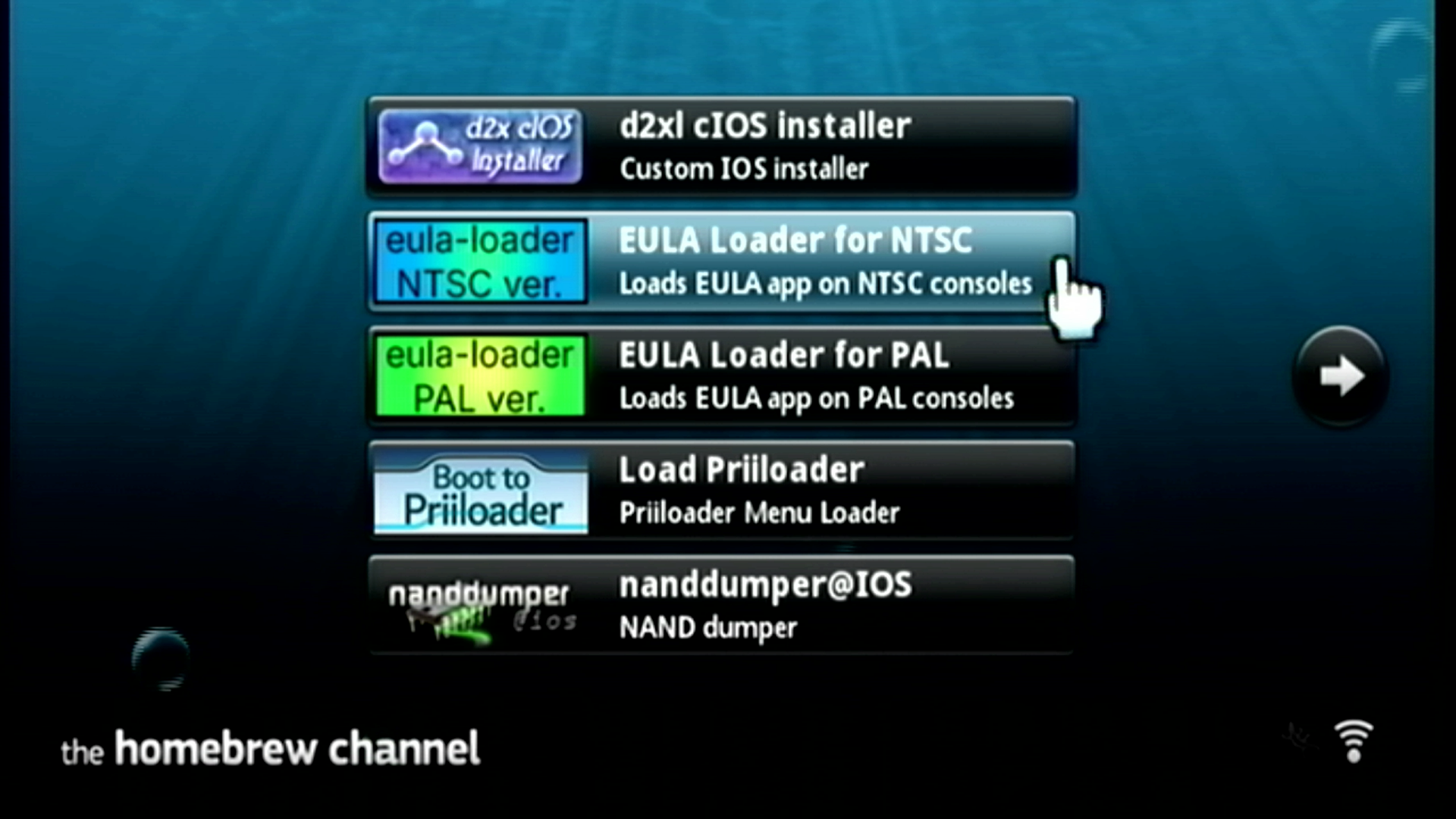
Download the forwarder above that matches the region of your Wii mini console. The forwarder will not work if you download the incorrect region.
Copy the
appsfolder in theEULA_Loader_XXX.zipfile to the root of your USB drive.Launch the Homebrew Channel.
Launch EULA Loader (your region) from the list of homebrew.
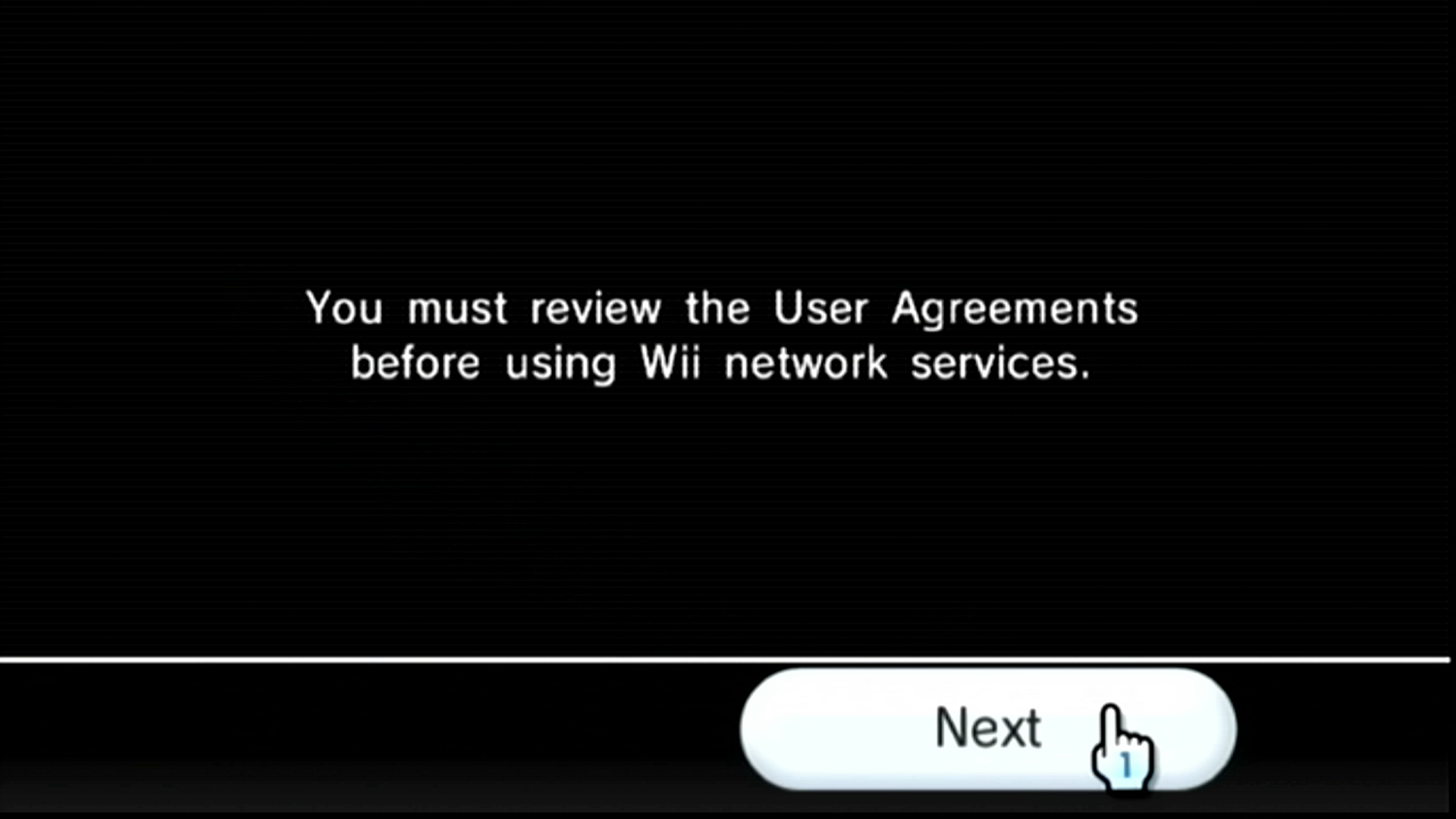
The EULA will launch. Press the Next button to proceed.
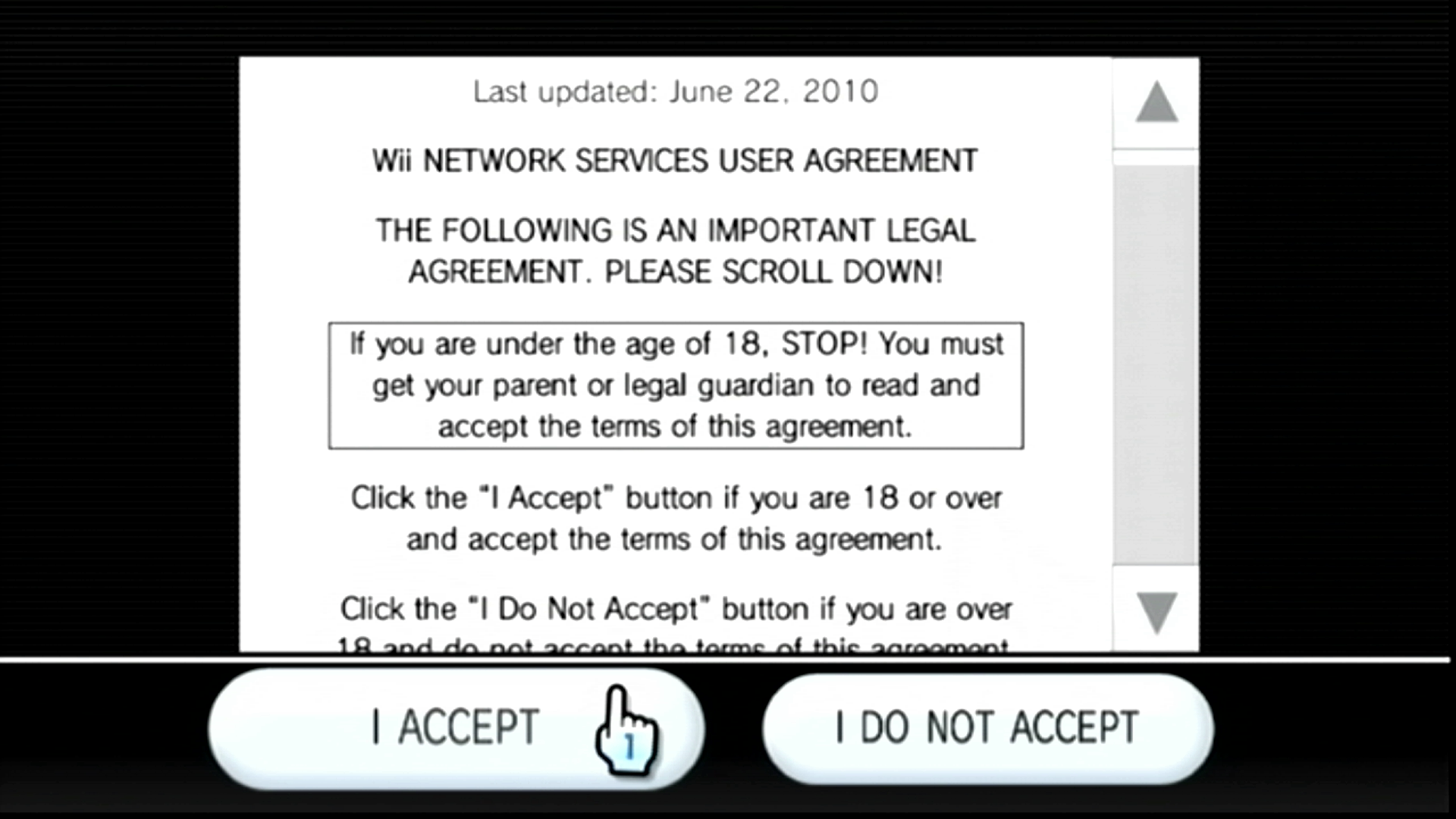
Press I ACCEPT to accept the EULA. You will be returned to the Wii Menu afterwards.
TIP
Now that your Wii mini setup is complete, you can install the Open Shop Channel, a trusted repository for homebrew that can be accessed both on and off the Wii mini.